
Site: statewatch.org
Theme: state-main
Companion plugin: statewatch-xml-importer
Audience: Editors, content managers, site administrators
Version: 0.1 (draft skeleton — 2026-04-25)
This is the skeleton of the full editorial guide. Each section currently contains:
Filled-in sections will replace this skeleton incrementally. See Section 0 below for the production plan and current progress.
single-article.twig)single-document.twig) — sidebar + PDF viewersingle-event.twig)single-research.twig)single-focus-area.twig)single-person.twig)single-job.twig)The guide will be filled in sections, in this order. Each milestone is reviewable on its own.
| # | Milestone | What gets filled in | Source of truth |
|---|---|---|---|
| M1 | Sections 1–3 | Intro, Getting started, Content model overview + map | this skeleton + theme/plugin code |
| M2 | Section 4 (CPTs) | Full CPT reference with admin screenshots | *PostType.php files + admin UI |
| M3 | Section 5 (Taxonomies) | Each taxonomy explained with examples | *Taxonomy.php files |
| M4a | Section 6 — Hero & headers | 3 blocks | views/blocks-acf/*/template.twig (per user instruction) |
| M4b | Section 6 — Content blocks | 15 blocks | as above |
| M4c | Section 6 — Listing blocks | 10 blocks | as above |
| M5 | Sections 7–8 | Single layouts + Document editing rules | single-*.php + views/single-*.twig |
| M6 | Sections 9–11 | Authors, Media, Forms | code + admin UI |
| M7 | Section 12 | XML importer (admin-focused, NOT migration manual) | plugin code + plugin memory |
| M8 | Sections 13–17 | Recipes, glossary, appendices | synthesised from M1–M7 |
After all milestones: final consistency pass, then convert to .docx via Pandoc.
This guide is the single reference for everyone who edits, publishes, or administers content on statewatch.org. It documents the entire content surface — the post types you can create, the taxonomies you fill in, the blocks you place on a page, and the rules that govern how each piece of content is rendered on the front-end.
It covers, in order:
If you find something in the guide that is wrong, outdated, or unclear, ping the technical lead — every section ends with the source-of-truth file path so you can verify yourself before reporting.
| Reader | Read first | Skim |
|---|---|---|
| Editor / contributor | Sections 2, 3, 6, 13 | 7, 8, 9, 10 |
| Editorial lead | Sections 3, 4, 5, 13 | All of 6, 8 |
| Site administrator | Sections 11, 12, Appendices A & B | Everything else |
| Hand-over reader (new dev / new agency) | Sections 3, 4, 5, 12 | All of 6, 7 |
You only need this background to make sense of the rest of the document. No coding required to use it.
wp-admin. All the standard WordPress concepts apply: posts, pages, users, media library, taxonomies.| Term | Plain-English meaning |
|---|---|
| CPT (Custom Post Type) | A "type of thing" that behaves like a WordPress post but with its own admin section. Example: statewatch_article is a CPT that holds news articles, research, documents, events, and annual reports. |
| Taxonomy | A way of categorising posts. Two flavours: hierarchical (like categories — terms can have parents) and flat (like tags). |
| Term | One entry inside a taxonomy. Example: in the sw_content_type taxonomy, "News" is a term. |
| ACF | The "Advanced Custom Fields" plugin. It lets editors fill in structured data (title, image, repeater lists, links) without touching code. |
| ACF Block | A self-contained Gutenberg block whose fields are defined by ACF. The site has 28 of them — every page on statewatch.org is built by stacking these. |
| Gutenberg | WordPress's block editor — the editing surface where you add ACF blocks to a page. |
| Twig template | The file that turns block data into HTML on the front-end. Editors never touch these directly. |
| Local JSON | How ACF stores its field group definitions on disk (in acf-json/). It is why field changes survive between environments. |
| Focus Area | A high-level topic page (e.g., "Borders and frontiers", "Snooping and surveillance"). Implemented as the sw_focus_area post type. |
| Content type | The most important taxonomy on statewatch_article. It decides what the article is (Article / Document / Event / Research / Annual Report) and which front-end layout will be used. |
| Section | A taxonomy mirroring the original Umbraco folder hierarchy. Used for legacy URLs and breadcrumbs. |
| Active vs. Archived | sw_status taxonomy. Archived items still appear in archive listings but are visually marked and excluded from "latest" feeds. |
| Document number / classification / addressee / publisher | Bibliographic metadata fields specific to documents (PDFs released by EU institutions etc.). Stored in the _swxi_sdp_* meta fields. |
| JhaArticle / CmsArticle / DBArticle | Legacy Umbraco type labels. They survive in the sw_article_source taxonomy on imported posts. |
https://statewatch.org/wp-admin/https://philosophical-teal-bobcat.b0c6b556d4a9fbd633a2a4f7e1d3cc8f-14859.sites.k-hosting.co.uk/wp-admin/http://state-main.local/wp-admin/The Staging environment is the safe place to preview editorial and structural changes before they go live on production. Editors should test new posts, importer runs, plugin updates, and any cross-cutting visual changes there first; once the result looks right, replicate the change on production (or ask an administrator to promote the staging build, if that workflow has been set up).
Use the credentials you were given separately. If you forget your password, click "Lost your password?" on the login screen — a reset link will be emailed to the address on your user profile.
Security – Do not share credentials over chat or email. – Staging may contain real (copied) editorial content. Treat it with the same care as production.
After login you land on the WordPress dashboard. The left-hand sidebar is your map of the entire site. The order of items has been customised to mirror the website's information architecture — content menus appear at the top in roughly the same order as the public navigation, with administrative items (Appearance, Users, Tools, Settings, ACF) below.
Hidden by default: Posts and Comments. Statewatch does not use the standard WordPress post type or comments — all editorial content lives in the custom post types listed below. Both menus remain reachable by direct URL (/wp-admin/edit.php, /wp-admin/edit-comments.php) for the rare case an administrator needs them, but they are removed from the sidebar to keep it focused.
How the content menus work. Most editorial menus you see (Articles, Research, Events, Annual Reports, Documents) are virtual menus added by the Statewatch XML Importer plugin. Each one opens the same
statewatch_articlepost-list filtered by asw_content_typeterm — so they are different windows onto one underlying post type. All Posts directly under them (formerly labelled Statewatch) is the unfiltered post-list of that same CPT (every article regardless of content type). Source:wp-content/plugins/statewatch-xml-importer/src/Admin/ContentTypeMenu.php+Admin/EditorUX.php(reorder + hide).The number badge next to each label is the live count of posts whose
sw_content_typematches that term.
The sidebar order, top to bottom (Statewatch-specific items only — default Dashboard, Appearance, Users, Tools, Settings behave as in any WordPress install):
| # | Sidebar item | Backed by | What lives here |
|---|---|---|---|
| 1 | Pages | WordPress core | Top-level pages such as Home, About, Contact, Donate, Privacy. Composed of ACF blocks. |
| 2 | Articles | statewatch_article filtered by sw_content_type=news |
News items — the closest equivalent to "Articles" in the previous CMS. The Latest articles / All articles blocks pull from this set. (Formerly labelled News in the sidebar.) |
| 3 | Research | statewatch_article filtered by sw_content_type=research |
Long-form research output. Has three sub-filters: Bulletins (bulletins), Reports (reports), Journal (journal) — each one a further sw_content_type filter. |
| 4 | Documents | statewatch_article filtered by sw_content_type=documents |
Source documents (typically PDF + metadata). Renders with the document single layout — sidebar metadata + embedded PDF viewer. Powers the all-documents block. |
| 5 | Events | statewatch_article filtered by sw_content_type=events |
Past and upcoming events. Powers the upcoming-events and all-events blocks. |
| 6 | Annual Reports | statewatch_article filtered by sw_content_type=annual-reports |
Yearly organisational reports. Powers the annual-reports block. |
| 7 | People | person CPT (registered via ACF UI) |
Team profile pages used by the people block. |
| 8 | Jobs | job CPT (registered via ACF UI) |
Job opening pages used by the jobs block. |
| 9 | Media | WordPress core | Image and PDF library. Auto-generates AVIF + WebP for every image you upload (see Section 10.2). |
| — | All Posts | statewatch_article (unfiltered) |
The raw, unfiltered list of every statewatch_article post — the union of Articles, Research, Events, Annual Reports, Documents combined. Use this when searching across all content types or when you don't yet know which content type a post is. (Formerly labelled Statewatch.) |
| — | Focus Areas | sw_focus_area CPT |
High-level topic pages (Borders and frontiers, Surveillance, etc.). Used by the focus-areas and focus-areas-tiles blocks. |
| — | Newsletter & API (Settings) | Theme BrevoOptions |
Newsletter / Brevo API configuration (see Section 11.2). |
| — | ACF | Advanced Custom Fields PRO | Field group definitions and the importer/exporter. Do not deactivate the plugin. |
| — | General options | Theme options page (ACF) | Sitewide options used by Twigs (e.g. All jobs page link). |
| — | Tools → Import Articles | Statewatch XML Importer | The XML Importer admin UI (see Section 12). Do not deactivate the plugin. |
Statewatch uses the standard WordPress role set:
| Role | Can | Cannot |
|---|---|---|
| Administrator | Everything: install plugins, manage users, run the importer, edit any content. | — |
| Editor | Publish, edit and delete any post; manage taxonomies; upload media. | Install/activate plugins; manage users. |
| Author | Publish and edit their own posts only. | Edit other people's posts. |
| Contributor | Write and edit own drafts. | Publish; upload media. |
| Subscriber | Read only. | — |
[TO BE WRITTEN WITH EDITORIAL TEAM INPUT] — placeholder for: voice and tone, capitalisation of headlines, when to publish as Article vs. Document, image-rights checklist, archive policy (when to flip sw_status to Archived), translation handling.
This is the single most important diagram in the guide. Spend a minute on it before reading the rest.
                                    ┌─────────────────────────────────┐
                                    │       statewatch_article        │
                                    │   (one CPT, many "kinds")        │
                                    └─────────────────────────────────┘
                                                 │
        ┌────────────────────────────────────────┼────────────────────────────────────────┐
        │                                        │                                        │
        ▼                                        ▼                                        ▼
   sw_content_type                          sw_status                             sw_section / sw_keyword
   (hierarchical — what KIND of post)       (Active / Archived)                   sw_topic / sw_org
                                                                                  sw_article_source
   ├── Articles                                                                   sw_institution
   │   ├── News                                                                   sw_legislation
   │   └── Analyses                                                               (multi-tag classification)
   ├── Research
   │   ├── Bulletins
   │   ├── Reports
   │   ├── Journal
   │   ├── Observatories
   │   ├── Projects
   │   └── Semdoc
   ├── Events
   ├── Documents
   └── Annual Reports

      ↓                                       ↓                                          ↓
  decides which                         filters out of                           feeds the dropdown
  single-*.twig                         "latest" listings                          filters in listing
  template renders                                                                blocks (all-articles,
                                                                                  all-documents, etc.)
Other CPTs (independent of statewatch_article):
sw_focus_area  ──→  rendered by single-focus-area.twig  ──→  linked to from focus-areas / focus-areas-tiles blocks
person         ──→  rendered by single-person.twig      ──→  listed by the `people` block
job            ──→  rendered by single-job.twig         ──→  listed by the `jobs` block
statewatch_article covers Articles, Documents, Events, Research, and Annual Reports as a single WordPress post type. The differentiation is done via the sw_content_type taxonomy.
This is a deliberate architectural choice carried over from the migration:
JhaArticle, CmsArticle, DBArticle) into one shape — splitting them on the WordPress side would have been busywork.WP_Query. The same admin search box finds anything.wp_posts row layout.The trade-off is that the kind of an article is not visible in the URL by default — you have to look at the sw_content_type term. The single template (single-statewatch_article.php) handles this automatically: it inspects the taxonomy and routes to the right Twig file (single-article.twig, single-document.twig, single-event.twig, single-research.twig).
Practical consequence for editors: Always set Content type correctly when creating an article. If you forget to set it, the post will fall back to the generic single-article layout and may not appear in the listing block you expect.
Worked example: publishing a news article about EU border policy.
Content type. Open the Content type taxonomy box → expand Articles → tick News. (Hierarchical — you can pick the parent or a child.)sw_keyword, sw_topic, sw_org terms as appropriate. These drive filter dropdowns in listings.Status. Default is Active. Archived items are hidden from "latest" feeds but remain searchable.https://statewatch.org/articles/ — your post should appear at the top, filtered by the News dropdown. The same post will also surface in:latest-articles block on the homepage.all-articles block on the Articles archive page.sw_keyword term you tagged it with.If the article does not show up where you expected, the cause is almost always one of:
Content type is missing or wrong.Status is Archived.There are five post types you will work with on Statewatch. Four are custom; one is the standard WordPress page. Below is a quick reference, then a detailed section for each.
| Post type | Slug | Admin label | Where registered | Front-end |
|---|---|---|---|---|
| Articles, Documents, Events, Research, Annual Reports | statewatch_article |
"All Posts" | Plugin: ArticlePostType.php |
single-statewatch_article.php → routed to one of single-article.twig / single-document.twig / single-event.twig / single-research.twig based on Content type taxonomy |
| Focus Areas | sw_focus_area |
"Focus Areas" | Plugin: FocusAreaPostType.php |
single-sw_focus_area.php → single-focus-area.twig |
| People (team profiles) | person |
"People" | ACF UI Post Types (DB-level) | single-person.php → single-person.twig |
| Job openings | job |
"Jobs" | ACF UI Post Types (DB-level) | single-job.php → single-job.twig |
| Pages | page |
"Pages" | WordPress core | page.php (composes ACF blocks via Gutenberg) |
Why are People and Jobs registered via ACF UI? ACF PRO 6.1+ ships a UI for registering post types and taxonomies directly from
wp-admin → ACF → Post Types. They are stored in the database, not in code. To export them or move between environments, use ACF → Tools → Export. They are not inacf-json/because Local JSON sync is not configured in this theme.
statewatch_article — Articles, Documents, Events, Research, Annual Reports Admin label in sidebar: All Posts (icon: document)
Slug: statewatch_article
URL pattern: dynamic — built from the sw_section term hierarchy. Examples:
- News article → /news/2025/december/{slug}/
- Document (JHA archive) → /jha-archive/{slug}/
- Document (publications) → /publications/{slug}/
- Research report → /publications/reports-and-books/{slug}/
- Event → /publications/events/{slug}/
Registration: wp-content/plugins/statewatch-xml-importer/src/PostTypes/ArticlePostType.php
Supports: title, editor (Gutenberg), excerpt, custom fields, thumbnail (featured image)
Taxonomies: sw_content_type (decides the layout), sw_status, sw_section, sw_article_source, sw_keyword, sw_topic, sw_org, sw_institution, sw_legislation — see Section 5 for each.
ACF fields specific to articles:
| Field | Type | Purpose | Notes |
|---|---|---|---|
Author (sw_author) |
Post Object → person |
The article's author. Drives the byline on the front-end and powers the "Articles by this person" listing on author profile pages. | NOT the WordPress Author dropdown — see Section 9. |
PDF (_swxi_sdp_pdf_attachment_id) |
Number (attachment ID) | PDF file attached to a Document | Document content type only |
Date (_swxi_sdp_document_datetime) |
Date | Document date | Document content type only |
Document number (_swxi_sdp_document_number) |
Text | Document reference number | Document content type only |
Classification (_swxi_sdp_classification) |
Text | e.g. "LIMITE", "RESTREINT UE" | Document content type only |
Author (_swxi_sdp_author) |
Text | Document author (free text — not the article byline) | Document content type only |
Addressee (_swxi_sdp_addressee) |
Text | To whom the document is addressed | Document content type only |
Publisher (_swxi_sdp_publisher) |
Text | Publisher of the document | Document content type only |
Full title (_swxi_sdp_title) |
Text | Long/full document title (used when the post title is shortened for display) | Document content type only |
Event date (_swxi_event_date) |
Date (Ymd) | Event date | Event content type only |
Event location (_swxi_event_location) |
Text | Event location | Event content type only |
Downloadable PDF (optional) (report) |
ACF File | Optional PDF — when set, a "Download Report" button appears at the top of the published post. | Article + Research content types. ACF group label is "Article — PDF Download Button". |
Show table-of-contents sidebar (show_navigation) |
True/False | Toggles the auto-generated TOC sidebar (built from H2 / H3 headings) on Research single posts. | Research content type only. ACF group label is "Research — Sidebar Navigation". |
Hide featured image (hide_featured_image) |
True/False | When on, the post's featured image (and the placeholder fallback) is suppressed at the top of the published Article / Research page — both desktop hero column and mobile hero strip. Useful for posts that lead with an embed, chart, or pull quote. | Article + Research content types. ACF group label is "Display options". |
Full meta-key reference is in Appendix A. Front-end placement of each meta key is documented in Section 8.4.
Editor sidebar — what is hidden by design The Sources (
sw_article_source) and Sections (sw_section) taxonomy panels are intentionally hidden from the post-edit screen forstatewatch_article. Both are managed by the importer and the auto-section assignment routine; editing them by hand causes broken hierarchical permalinks and mis-classified content. They remain editable from the taxonomy admin pages (/wp-admin/edit-tags.php?taxonomy=sw_sectionetc.) for the rare cases where a real change is needed. Source:Admin/EditorUX.php(hideTaxonomyMetaBoxes+ GutenbergremoveEditorPanelscript).The Yoast SEO meta box has also been moved to the bottom of the sidebar (priority
low) so editors fill in editorial fields — taxonomies, author, ACF — before SEO.
Where it appears on the front-end:
latest-articles block (homepage) — Articles content type, latest 10all-articles block — Articles archive pageall-documents block — Documents archiveall-research / latest-resarch blocks — Research pagesall-events / upcoming-events blocks — Events pageannual-reports block — annual reports landingsingle-person.twig (related articles by author)single-focus-area.twig (articles whose sw_keyword or sw_topic terms intersect with the focus area's Keywords / Topics ACF fields)Admin list view:
Edit view:
Front-end (Article single):
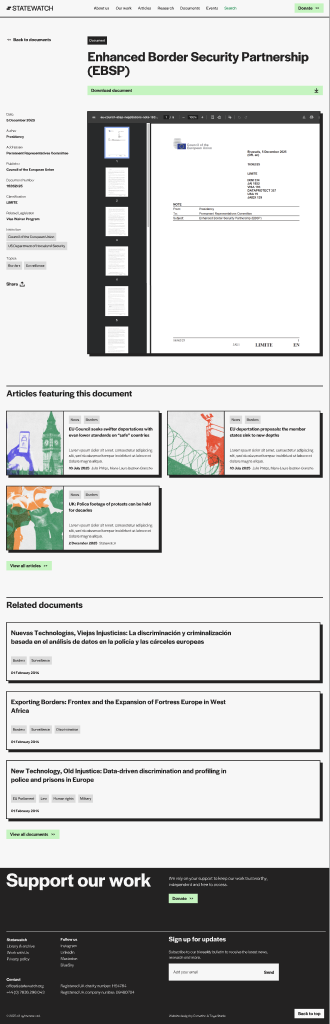
Front-end (Document single):
sw_focus_area — Focus Areas Admin label: Focus Areas (icon: flag)
Slug: sw_focus_area
URL pattern: /focus-area/{slug}/ (singular — the slug really is focus-area, not focus-areas)
Registration: wp-content/plugins/statewatch-xml-importer/src/PostTypes/FocusAreaPostType.php
Supports: title, editor, excerpt, thumbnail
Existing focus areas on the site (from the homepage at the time of writing):
Where it appears on the front-end:
focus-areas block (long list, e.g. on the homepage)focus-areas-tiles block (tiled grid, e.g. on the Our work page)single-focus-area.twig) which shows the focus area description plus related articles and research⚠ Known issue: the taxonomy archive at
http://state-main.local/focus-area/(without a slug) currently returns a 500. The individual focus-area pages work fine. This is a developer todo, not an editor issue.
Custom fields (verified in single-sw_focus_area.php):
| Field | Meta key | Purpose |
|---|---|---|
| Hero background colour | Hero background colour (_sw_fa_color) |
Hex colour applied to the focus area hero (#232222 if empty). |
| Keywords | Keywords (_sw_fa_keywords) |
Multi-select of sw_keyword term IDs — drives the Related research + Related articles lists. |
| Topics | Topics (_sw_fa_topics) |
Multi-select of sw_topic term IDs — same purpose, OR'd with keywords. |
Admin edit view:
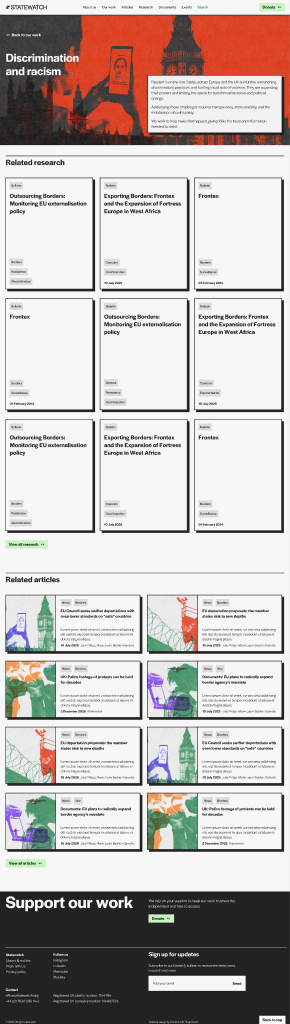
Front-end:
person — Team profiles Admin label: People
Slug: person
URL pattern: /person/{slug}/
Registration: ACF UI Post Types (DB-level, not in code)
Single template: single-person.php → views/single-person.twig
ACF fields (confirmed by reading single-person.php):
| Field | Type | Purpose |
|---|---|---|
Pronouns / pronunciation (pronounce) |
Text | Pronunciation/pronouns |
Position (position) |
Text | Job title (e.g. "Director", "Researcher") |
LinkedIn (linkedin) |
URL | LinkedIn profile link |
Email (email) |
Public email (use a forwarding address — this is shown in plaintext on the front-end) |
Taxonomy: person-category (attached to person CPT). Known terms include staff. Other terms drive the filter on the people block.
Where it appears on the front-end:
people block (with category filtering — Staff shown by default, other categories selectable)single-person.twig) showing pronouns, position, contact links, and all articles + research where this person is set as Author (sw_author).Admin edit view:
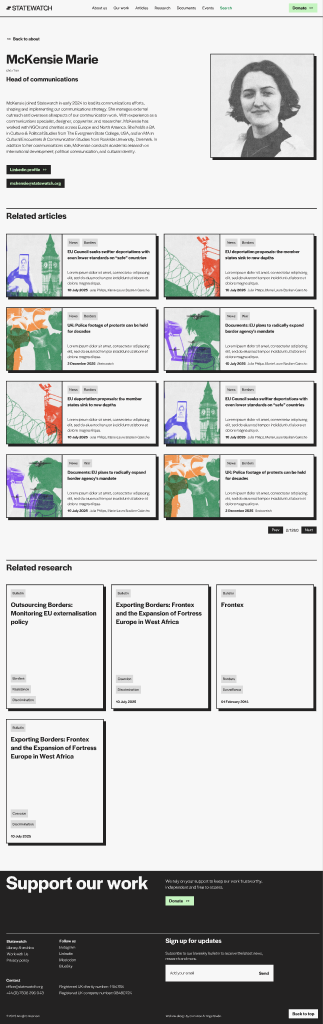
Front-end:
job — Job openings Admin label: Jobs
Slug: job
URL pattern: /job/{slug}/
Registration: ACF UI Post Types (DB-level, not in code)
Single template: single-job.php → views/single-job.twig
ACF fields (confirmed by reading single-job.php):
| Field | Type | Values / Format | Purpose |
|---|---|---|---|
Location (location) |
Text | Free text (e.g. "London / Remote") | Displayed on the listing card and single page |
Status (status) |
Select | open, closed |
Closed jobs are hidden from "Other open jobs" cross-references |
Type (type) |
Text | Free text (e.g. "Full-time", "Contract") | Displayed on the listing card |
Apply link (apply_link) |
ACF Link (url, title, target) |
— | "Apply" button |
Closing date (closed_date) |
Text date in d/m/Y format |
e.g. 30/06/2026 |
After this date the job is treated as closed even if Status (status) is still open. Format strictly enforced — see admin notes below |
Date format trap: Closing date (
closed_date) is stored as a string ind/m/Y. The single template parses it withDateTime::createFromFormat('d/m/Y', …). Any other format (e.g. ISO2026-06-30) will silently fail and the job will appear forever as open. The ACF Date Picker for this field is configured to outputd/m/Y.
Sidebar option used by single-job.twig: ACF Link field All jobs page (our_jobs) on the theme options page — sets the "Back to all jobs" URL.
Where it appears on the front-end:
jobs block on the Work with us pagesingle-job.twig) with the apply button + "Other open jobs" sidebarAdmin edit view:
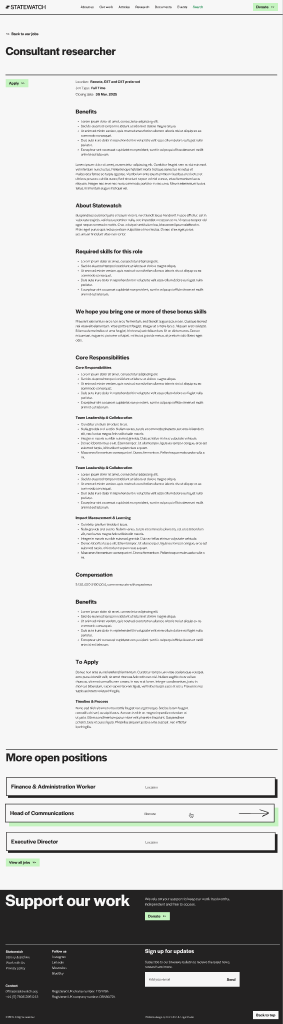
Front-end:
page — Standard WordPress Pages Admin label: Pages (built-in)
Slug: page
Single template: page.php (Timber) — composes whatever ACF blocks the editor placed inside Gutenberg.
Pages on the live site (confirmed by crawling the menu):
| URL | Title | Composition |
|---|---|---|
/ |
Home | hero + what-we-do + focus-areas + research + latest-articles + upcoming-events |
/about-us/ |
About us | hero-title-text + content + people + cta-banner |
/our-work/ |
Our work | hero + focus-areas-tiles |
/articles/ |
Articles | hero-title-text + all-articles |
/research/ |
Research | hero-title-text + all-research |
/documents/ |
Documents | hero-title-text + all-documents |
/events/ |
Events | hero-title-text + all-events |
/work-with-us/ |
Work with us | hero + jobs |
/contact/ |
Contact | contact-form + contact-columns |
/donate/ |
Donate | hero + content + support-cta |
/privacy-policy/ |
Privacy policy | content |
/search/ |
Search | search |
Editor tip: when in doubt, the front-end
View Page Sourcewill tell you which ACF blocks are on a page (they render as<section class="blk-{name}">).
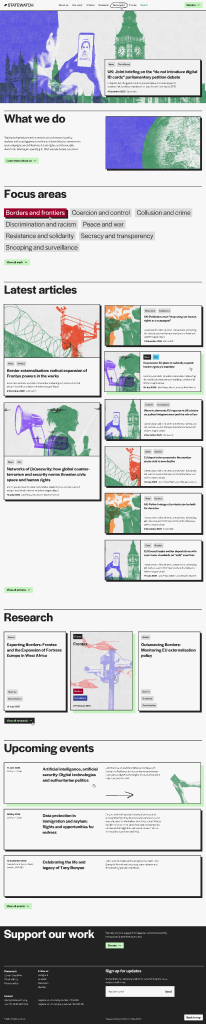
Front-end (Home):
There are ten taxonomies in the system. Nine are attached to statewatch_article. One (person-category) is attached to person. Focus areas (sw_focus_area) are a CPT, not a taxonomy.
| Slug | Hierarchical? | Attached to | Admin label | Editor fills it? |
|---|---|---|---|---|
sw_content_type |
yes | statewatch_article |
Content Types | Always |
sw_status |
no | statewatch_article |
Status | Always (defaults to Active) |
sw_section |
yes | statewatch_article |
Sections | Auto on import; editors may add for new posts |
sw_article_source |
no | statewatch_article |
Article Sources | Legacy — set by importer; editors leave alone |
sw_keyword |
no | statewatch_article |
Statewatch Keywords | Often |
sw_topic |
no | statewatch_article |
Statewatch Topics | Sometimes |
sw_org |
no | statewatch_article |
Statewatch Organisations | Sometimes |
sw_institution |
no | statewatch_article |
Institutions | Sometimes (mostly Documents) |
sw_legislation |
no | statewatch_article |
Legislation | Sometimes (mostly Documents) |
person-category |
yes | person |
(ACF UI) | Always (Staff / others) |
All sw_* taxonomies are registered by the Statewatch XML Importer plugin in wp-content/plugins/statewatch-xml-importer/src/Taxonomies/*.php. Reactivating the plugin re-runs registration.
sw_content_type Hierarchical · attached to statewatch_article · admin column visible
The single most important taxonomy. It decides:
single-article.twig / single-document.twig / single-event.twig / single-research.twig).all-articles queries News + Analyses; all-documents queries Documents; all-events queries Events; etc.).Term tree (verified against ContentTypeTaxonomy.php):
Articles
├── News
└── Analyses
Research
├── Bulletins
├── Reports
├── Journal
├── Observatories
├── Projects
└── Semdoc
Events
Documents
Annual Reports
Editorial guidance
/sw_content_type/{slug}/. Do not rename slugs once they are live.sw_status — Active / Archived Flat · attached to statewatch_article · two fixed terms
Source: StatusTaxonomy.php. The two terms are constants:
| Term | Slug | Used for |
|---|---|---|
| Active | active |
Default. Visible everywhere. |
| Archived | archived |
Older content. Hidden from "latest" feeds; surfaces in dedicated archive sections of all-events and all-research (e.g. Past events tab); kept searchable. |
Auto-assignment on import: the XML Importer sets archived automatically when the source URL contains /archive/, -archive/, or /archived/. Everything else is active.
Editorial guidance
sw_section Hierarchical · attached to statewatch_article · drives the URL of every article
Source: SectionTaxonomy.php. Mirrors the original Umbraco folder structure — about 527 terms for CmsArticles plus parents.
Critical role: the article URL is built from the section path. The CPT registers its rewrite slug as '%sw_section%', which means the section term hierarchy literally becomes the URL. For example:
news → year 2025 → month december produces a URL like /news/2025/december/{post-slug}/.Slug convention: terms use the last path segment only. So the term for news-2025-january is just january — its parent is 2025, whose parent is news. This avoids "news-2025-january" appearing twice in URLs.
Auto-population:
- Run by wp swxi import-structure (Section 12.5) once, before the first article import.
- New articles published manually after the import are auto-assigned to News → {Year} → {Month} by the plugin (filterable via swxi_auto_section_parent — developer-only).
Editorial guidance
ContentTypeMapper.php (PATH_MAPPINGS) to keep importer URL→type mapping consistent.Hidden from the post-edit screen. The Sections meta box / Gutenberg panel is hidden on
statewatch_articleedits to prevent accidental URL breakage. Manage terms via All Posts → Sections in the admin (/wp-admin/edit-tags.php?taxonomy=sw_section&post_type=statewatch_article). Source:Admin/EditorUX.php.
sw_article_source — legacy Umbraco source Flat · attached to statewatch_article · admin column visible · rewrite slug /source/
Source: ArticleSourceTaxonomy.php. Records which legacy Umbraco document type produced the article:
| Term slug | Umbraco type | Layout consequence |
|---|---|---|
jha-archive |
JhaArticle | Renders with the Document layout (sidebar metadata + PDF viewer) |
news |
CmsArticle | Renders with the Article layout |
legacy-database |
DBArticle | Most are excluded from migration — see Section 12.7 |
Editorial guidance
sw_content_type.Hidden from the post-edit screen. The Sources meta box / Gutenberg panel is hidden on
statewatch_articleedits — the value is set by the importer and editing it by hand changes which single template is rendered. Manage terms via the taxonomy admin page if a real change is ever needed. Source:Admin/EditorUX.php.
sw_keyword — Statewatch Keywords Flat · attached to statewatch_article · admin column visible · rewrite slug /statewatch-keyword/
Source: KeywordsTaxonomy.php. The most-used "tag" taxonomy.
Originally populated from Umbraco fields Sdp_keywords, Sdp_statewatchkeywords, and Keywords (merged). Editors add new keywords as needed.
Where it surfaces on the front-end
all-articles, all-documents, etc./statewatch-keyword/{slug}/.Editorial guidance
border-controls, not Border Control).statewatch-keywords.xlsx in the importer plugin).sw_topic — Statewatch Topics Flat · attached to statewatch_article · admin column visible · rewrite slug /statewatch-topic/
Source: TopicTagsTaxonomy.php. Populated from Umbraco TopicTags (DBArticle-only).
Editorial use: complementary to sw_keyword. Topics are broader thematic groupings (e.g. Migration, Counter-terrorism) while keywords are granular (e.g. Schengen-information-system, border-externalisation). Reuse existing terms — see statewatch-topics.xlsx in the importer plugin for the imported set.
sw_org — Statewatch Organisations Flat · attached to statewatch_article · admin column visible · rewrite slug /statewatch-org/
Source: OrganisationalTagsTaxonomy.php. Populated from Umbraco OrganisationalTags (DBArticle-only).
Editorial use: the organisation(s) the article is about (e.g. Frontex, Europol, European Commission), not the publisher. For document publishers, use the Publisher (_swxi_sdp_publisher) meta field (see Section 8.2). Reference list: statewatch-organisations.xlsx in the importer plugin.
sw_institution Flat · attached to statewatch_article · no admin column · rewrite slug /institution/
Source: InstitutionTaxonomy.php. Less commonly used — typically reserved for Documents that originate from a specific EU institution (Council of the EU, European Parliament, Commission DGs).
Editorial guidance
sw_org is usually the right choice.sw_legislation Flat · attached to statewatch_article · no admin column · rewrite slug /legislation/
Source: LegislationTaxonomy.php. Tags articles that reference specific pieces of EU legislation (regulations, directives, framework decisions).
Editorial guidance
person-category Hierarchical · attached to person CPT · registered via ACF UI (DB-level)
Drives the category filter on the people block. The staff term is treated specially in the block's render.php — it appears first in the tab list, and is the default selected category on page load.
Known terms: staff (treated specially — pinned first in the people block tab list). Additional categories can be added in the admin and are surfaced as additional tabs alphabetically.
Editorial guidance
Every visual section on Statewatch is built from an ACF block. A page is just a vertical stack of blocks, each filled with structured fields by an editor. There are 28 blocks — they are documented in §6.2 (hero & headers), §6.3 (content), and §6.4 (listings).
Adding a block
Moving / duplicating / removing
Use the floating block toolbar that appears when a block is selected:
Alignment
Most blocks support two alignments:
The toolbar shows the alignment buttons; the active state is the only one rendered on the front-end.
Spacing (padding / margin)
Blocks that include 'spacing' => ['padding', 'margin'] in their config can be tuned per-instance from the Dimensions panel in the block sidebar. Use sparingly — most blocks already include sensible default spacing.
In-editor preview vs. front-end
Every Statewatch block uses ACF's mode: preview — the editor renders the actual front-end output. This means what you see in the editor is what gets shipped, with two caveats:
- AJAX-driven listings (e.g. filter dropdowns in all-articles) show the static initial state in the editor.
- Animations (e.g. fade-up on scroll) do not run in the editor.
Asset loading
Each block has its own SCSS and TypeScript bundle. The bundle is enqueued only on pages where the block actually appears (handled by Enqueue.php via the block's enqueue_assets callback). Adding a block to a page therefore has zero cost on pages that do not use it.
Reading this section
Each block below follows the same layout:
views/blocks-acf/{block}/template.twig (the source of truth — every fields.* reference in the Twig is documented here).render.php, dependencies).hero Purpose: Full-bleed homepage hero. Background image with a featured-post card overlaid bottom-right.
Where it is used: The Home page (/).
Fields (verified against views/blocks-acf/hero/template.twig):
| Field | Type | Required | Notes |
|---|---|---|---|
image |
Image | Yes (visually) | Background image. Loaded eagerly (priority: true, no lazy load) — this is the LCP image. Renders at object-fit: cover over the full hero area. |
post |
Post Object → statewatch_article |
Yes | The featured article shown in the bottom-right card. Pulls title, excerpt, content type, tags from the linked post. |
Front-end (Figma — block view):

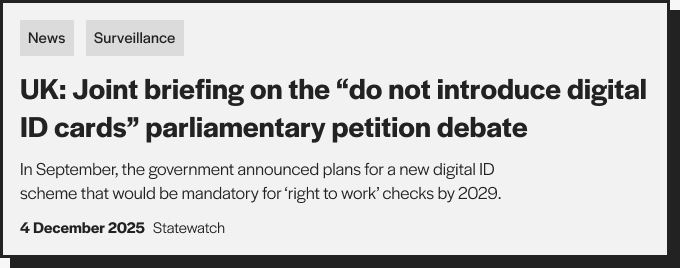
The featured-post card overlaid on the bottom-right of the hero:
Front-end (state-main.local):
Admin notes
views/partials/post-card.twig. Card colours and tags are driven by the post's taxonomies, not by the hero block.mode: preview, so the Gutenberg editor shows the actual hero with the chosen image and post.hero-title-text Purpose: Page-header band with a large title plus supporting text and an optional CTA button. No image.
Where it is used: Section/landing pages where the title carries the visual weight: /articles/, /research/, /documents/, /events/, /about-us/, /work-with-us/.
Fields (verified against template.twig):
| Field | Type | Required | Notes |
|---|---|---|---|
title |
Text | Yes | Rendered as <h1 class="text-headline-1"> — the page H1. |
text |
WYSIWYG / Text | No | Body paragraph next to the title. Two-column layout: title left (col-lg-5), text right (col-lg-5 offset-lg-1). |
button |
ACF Link | No | CTA below the text. Uses standard partials/button.twig (primary style). |
Front-end (Figma — full row, title left + intro/button right):

Same component is used as page header on Articles, Research, Documents, Events, About, Work with us pages.
Front-end (state-main.local):
Admin notes
config.php — fields registered via ACF UI. Check Custom Fields → Field Groups → "Hero title text" to inspect or modify.hero-title-image Purpose: Two-column hero with a title + body text + button on the left, and a portrait/feature image on the right.
Where it is used: Story-led pages where the image carries meaning: /our-work/, /donate/, /work-with-us/, /about-us/ (top section).
Fields (verified against template.twig and the acf_add_local_field_group call in config.php):
| Field | Key | Type | Required | Notes |
|---|---|---|---|---|
title |
field_hti_title |
Text | Yes | H1 of the page. Renders twice in the DOM — desktop shows it on the left, mobile shows it above the image (controlled by Bootstrap d-lg-none / d-none d-lg-block). |
text |
field_hti_text |
WYSIWYG (basic toolbar, media disabled) | No | Body paragraph(s) under the title. Outputs raw HTML ({{ fields.text \| raw }}) — links and <strong> work, but the editor controls only basic formatting. |
button |
field_hti_button |
Link (ACF) | No | CTA under the body text. |
image |
field_hti_image |
Image (return: array) | Yes (visually) | Right-column image. Loaded eagerly (priority). Sizes attribute: (min-width: 992px) 50vw, 100vw. |
Front-end (Figma — full row, text left + image right):
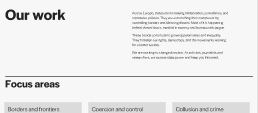
Used as the top section of the Our work / Donate / About us pages.
Front-end (state-main.local — Our work):
Admin notes
acf_add_local_field_group in config.php). The other two are registered via the ACF UI. Practical consequence: changes to Hero title image fields require a code change; changes to the others are click-to-edit in wp-admin → Custom Fields.title-text Purpose: Two-column heading block — H2 on the left, supporting paragraph + optional CTA on the right. The most common "section header" on long pages.
Where it is used: As a section divider on landing pages (homepage between hero and listings, About page between sections).
Fields:
| Field | Type | Notes |
|---|---|---|
title |
Text | Rendered as <h2 class="text-headline-2">. |
text |
WYSIWYG | Body paragraph(s). Output as raw HTML — links and <strong> work. |
button |
ACF Link | Optional CTA below the text. |
Front-end (Figma — full row, title left + body/button right):

title-text-image Purpose: Same as title-text but with a feature image on the right column. Two-column layout that swaps to image-on-top on mobile.
Where it is used: Story-led sections on About / Donate / Our work pages.
Fields:
| Field | Type | Notes |
|---|---|---|
title |
Text | H2. |
text |
WYSIWYG | Body, raw HTML output. Slightly lighter weight (fw-light). |
button |
ACF Link | Optional CTA. |
image |
Image | Right-column image. Sizes: (min-width: 992px) 50vw, 100vw. |
Front-end (Figma — full row, title/text left + image right):

article-body Purpose: The rich-text body of an Article or Research single page, with an optional sticky table-of-contents side menu built automatically from H2 / H3 / H4 headings inside the WYSIWYG.
Where it is used: Inside individual articles and research posts.
Fields:
| Field | Type | Effect on the front-end |
|---|---|---|
Show sidebar (show_sidebar) |
True/False | When ON: layout splits into a 3-col side TOC + 6-col content. When OFF: content is full-width. |
Title (title) |
Text | Optional H1 above the content area (used when the post title is shortened and the body needs the long display title). |
Content (content) |
WYSIWYG (full toolbar) | The rich-text body. Rendered inside .text-content. |
The body content itself is structured by headings, not by separate blocks. A single article-body block contains the entire article as one WYSIWYG field. To create the visible sub-sections you see on the live site (e.g. "The cost of Fortress Europe", "Reclaiming migration", etc.), insert H2 headings inside the WYSIWYG. The JavaScript on the article page reads every H2 / H3 / H4 from the body and:
id (slugified from the heading text).Two TOC mechanisms exist on article pages — they are different:
- Page-level TOC (
single-article__toc) — built byinitArticleToc()from headings inside.single-article__content(the main post body). This is the side menu visible on every long article single.- Block-level TOC (
blk-article-body__toc) — built by thearticle-bodyblock's ownview.tsfrom headings inside its own.blk-article-body__wysiwygelement, only when Show sidebar is ON.If both are present, the page-level one renders the master menu in the article single layout, and the block-level one is a redundant copy. In normal use you only need to leave Show sidebar OFF — the page-level TOC handles everything.
How to create body sub-sections (editorial steps):
Footnotes / endnotes (how to write them):
The article body supports automatically wired footnotes for both Word-pasted content and manually authored notes. The mechanism lives in app.ts → initArticleFootnotes() and runs only on article single pages.
To use footnotes:
href="#fn-N" (where N is the note number) and the visible text being the number itself. Example: <a href="#fn-1">1</a> — pasted from Word, the link will look like <a href="#_bookmark1">…</a> and is also accepted.<ol>) where each <li> is a single footnote. Each footnote item should contain at least one external link (http…) — the script uses this to recognise the OL as the footnote list (separating it from any other ordered lists you may have used inside the article).<sup> so it renders as superscript.fnref-N (inline) and fn-N (in the list).↩ at the end of each footnote item.Editorial note: if the article has fewer footnote items in the OL than inline references in the body, the surplus inline references are still wired but their popover will be empty. Always keep the count matched.
Front-end (Figma — full section with side menu visible):

Front-end (Figma — content area only):

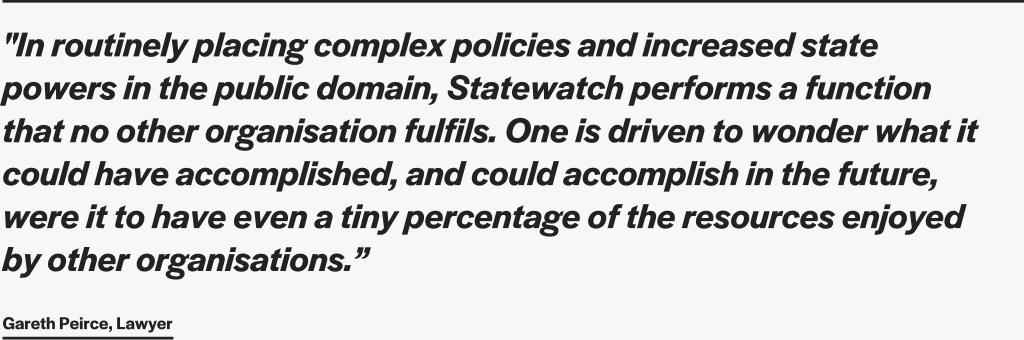
pull-quote Purpose: A blockquote-style pull-quote with an optional author attribution. Used to break up long-form articles.
Where it is used: Inside long Articles / Research posts.
Fields:
| Field | Type | Notes |
|---|---|---|
quote |
Text (multi-line) | The quote body. Rendered with .text-pull-quote (large italic). |
author |
Text | Attribution line. Rendered as a small paragraph below the quote. |
Front-end (Figma — section view):
what-we-do Purpose: Two-column "manifesto" section — title + body + CTA on the left, large image on the right. Larger and more visually heavy than title-text-image.
Where it is used: Homepage and About page top sections.
Fields:
| Field | Type | Notes |
|---|---|---|
title |
Text | Renders as H1 (note: H1, not H2). |
text |
Text | Supporting paragraph (text-body-2). |
button |
ACF Link | CTA. |
image |
Image | Right column. |
Front-end (Figma — full row, text left + image right):

embed-iframe Purpose: Drop in any external embed snippet — YouTube / Vimeo videos, datawrapper / Flourish charts, Google Maps, Airtable, Twitter/X posts, etc. Editor pastes the full <iframe> (or oEmbed-style) HTML and the block renders it inside a responsive ratio wrapper.
Where it is used: Long-form Research posts and Article bodies that need a visualisation, a video, or a third-party widget. Available in any place ACF blocks can be added.
Fields:
| Field | Type | Notes |
|---|---|---|
Embed code (embed_html) |
Text (multi-line, required) | Paste the full <iframe>…</iframe> snippet. Sanitised with wp_kses against an iframe-aware allowlist (allows <iframe>, <blockquote>, <script>, <a>, <div>, <p>, <br>). Anything outside the allowlist is stripped on render. |
Optional caption (caption) |
Text | Small caption shown below the embed. |
Aspect ratio (aspect) |
Select | 16x9 (default), 4x3, 1x1, 21x9, or auto. Choose Auto for embeds that set their own height (datawrapper scripts, Twitter/X, Flourish). |
Editorial workflow:
1. On the source platform, click Share → Embed and copy the full snippet.
2. In Gutenberg, add a Embed (iframe) block.
3. Paste the snippet into Embed code.
4. Pick the aspect ratio that matches the source. Most YouTube/Vimeo videos are 16x9; most datawrapper / Flourish charts use auto.
5. Optional: add a caption.
6. Save and preview — the editor preview renders the actual embed, not just a placeholder.
Full-bleed in Research: when this block is placed inside a Research single post (i.e. sw_content_type=research), the front-end automatically renders it full viewport width — breaking out of the body column. The body column is otherwise capped at col-lg-9 (with the optional 3-col TOC offset), which is too narrow for charts or video embeds. No editor toggle needed: detection happens in render.php (is_singular('statewatch_article') + has_term('research', 'sw_content_type')) and adds a blk-embed-iframe--research-full modifier class. On any other post type / page the block stays inside its container as usual.
Files: src/blocks-acf/embed-iframe/{config.php,render.php,view.ts,style.scss} and views/blocks-acf/embed-iframe/template.twig.
accordions Purpose: A title + paragraph on the left, expandable Q&A list on the right.
Where it is used: FAQ-style sections on About, Donate, Work with us pages.
Fields:
| Field | Type | Notes |
|---|---|---|
title |
Text | Section H2 (left col). |
text |
Text | Supporting paragraph below the title. |
button |
ACF Link | Optional CTA below text. |
accordions |
Repeater | Each row: title (Text), text (WYSIWYG), button (Link, optional, inside the answer). |
Front-end (Figma — section view):

accordions-wide Purpose: Same as accordions but with a single-column, full-width layout — title above, accordion list below. No supporting button column.
Where it is used: When the accordion list is the primary content of the section.
Fields:
| Field | Type | Notes |
|---|---|---|
title |
Text | H2 above the list. |
text |
Text | Optional paragraph above the list. |
accordions |
Repeater | Same structure as accordions: title, text, button. |
Front-end (Figma — section view):

cta-banner Purpose: Small inline call-to-action card. Title + short text + a single dark-arrow link button. Designed to be embedded in narrow columns or as a footer accent, not as a full-width section.
Where it is used: Inside support-cta, in narrow page columns, or as a footer accent on landing pages.
Fields:
| Field | Type | Notes |
|---|---|---|
title |
Text | text-headline-8 (smaller than other H2s). |
text |
Text | Short body (text-body-5). |
button |
ACF Link | Dark-arrow style button. |
Front-end (Figma — section view):
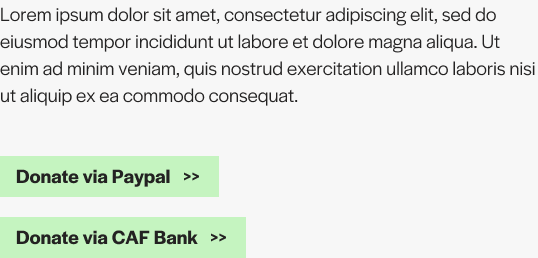
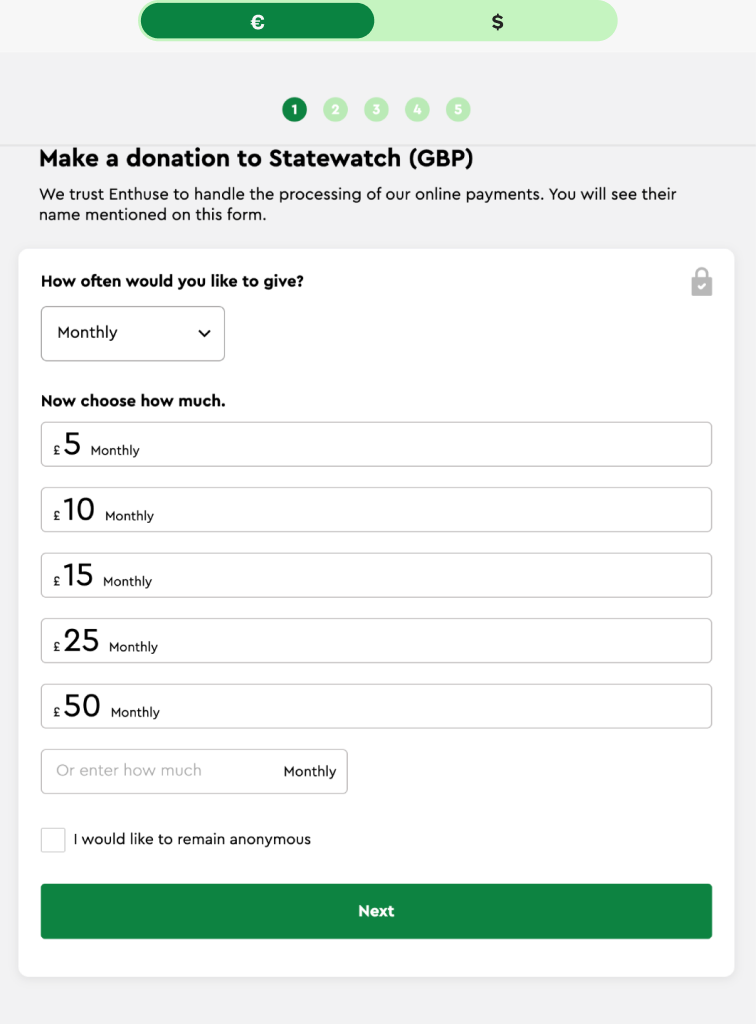
support-cta Purpose: Two-row support / donate section. Top row: title left, text + multiple buttons right. Bottom row: tabbed embed area for Stripe / Brevo / similar widgets.
Where it is used: Donate page, About page bottom.
Fields:
| Field | Type | Notes |
|---|---|---|
title |
Text | H2. |
text |
WYSIWYG | Body paragraph (raw HTML). |
buttons |
Repeater | Each row: link (ACF Link). Renders as a vertical stack of CTAs. |
tabs |
Repeater | Each row: tab_title (Text), embed (Textarea — raw HTML embed code, e.g. an iframe or form snippet). |
Front-end (Figma — section view):
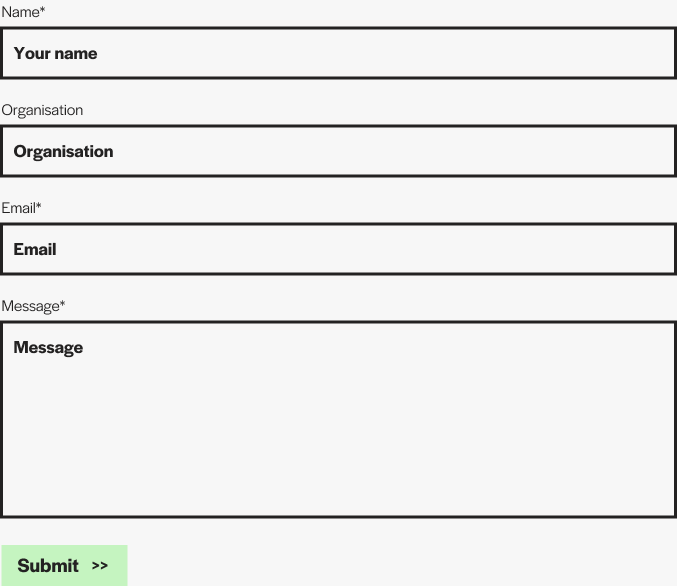
contact-form Purpose: The contact form on the Contact page. Hard-coded fields: Name (required), Organisation, Email (required), Message (required). Submits via AJAX.
Where it is used: Contact page.
Fields (only the heading area is editable; the form itself is fixed):
| Field | Type | Notes |
|---|---|---|
title |
Text | Section H2. |
description |
Text (multi-line) | Intro paragraph (left column). Supports newlines (\| nl2br). |
button |
ACF Link | Optional CTA in the left column (e.g. mail-to fallback). |
Form fields (fixed in code — see views/blocks-acf/contact-form/template.twig): name, organisation, Email (email), message. Includes a hidden honeypot (hp_input) and a nonce + timestamp for spam prevention. Submissions go through src/php/Ajax/Contact.php.
Where submissions go: the address stored in the ACF Options field Contact email (contact_email). If empty or invalid, the form falls back to get_option('admin_email'). Submissions are sent only by email — there is no database log.
Front-end (Figma — section view):
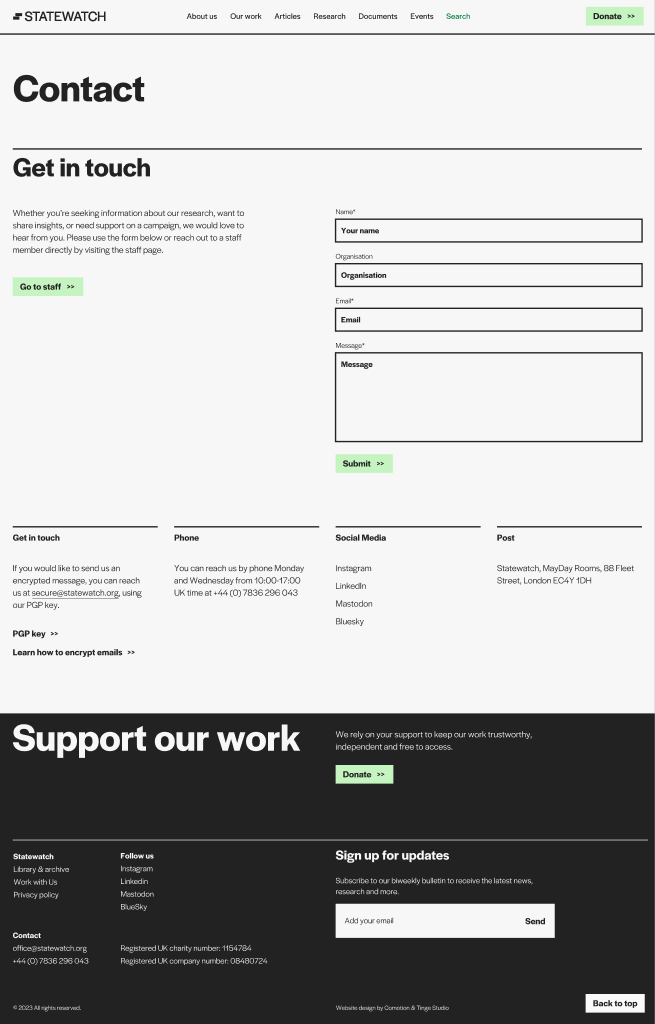
contact-columns Purpose: A row of up to 4 columns each with title + body + a list of links. Links can be plain links, arrow-CTAs, or pop-up triggers (modal opens with extra info).
Where it is used: Contact page (below the form), other contact / partners pages.
Fields:
| Field | Type | Notes |
|---|---|---|
columns |
Repeater | Each: column_title (Text), column_text (WYSIWYG, raw), column_links (Repeater of links). |
Each column_links row:
| Sub-field | Type | Notes |
|---|---|---|
link_text |
Text | Visible label. |
link_url |
URL | Plain link target. |
link_arrow |
True/False | If on, renders the link with the small arrow icon. |
link_popup |
True/False | If on, the link opens a modal instead of navigating. Modal content uses additional sub-fields on the same row (popup title + body). |
Front-end (Figma — section view):
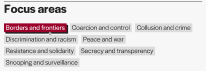
focus-areas Purpose: Long horizontal list of all focus areas as link labels. Hover applies the focus area's brand colour.
Where it is used: Homepage (full list) and other broad-overview pages.
Fields:
| Field | Type | Notes |
|---|---|---|
tile |
Text | Section title (rendered as H2 — the field is named tile for legacy reasons). |
button |
ACF Link | CTA below the list (e.g. "Explore all focus areas"). |
Auto-loaded data: the focus area list is queried by the block's render.php from sw_focus_area posts. Editors do not add focus areas through this block — manage them in the Focus Areas CPT.
Per-focus-area visual customisation (set on the Focus Area post itself):
- color — hover background colour (CSS custom property --label-hover-color).
- is_light — flag toggling text colour to dark on light backgrounds (boolean ACF field on sw_focus_area).
Front-end (Figma — full section: title + label list):
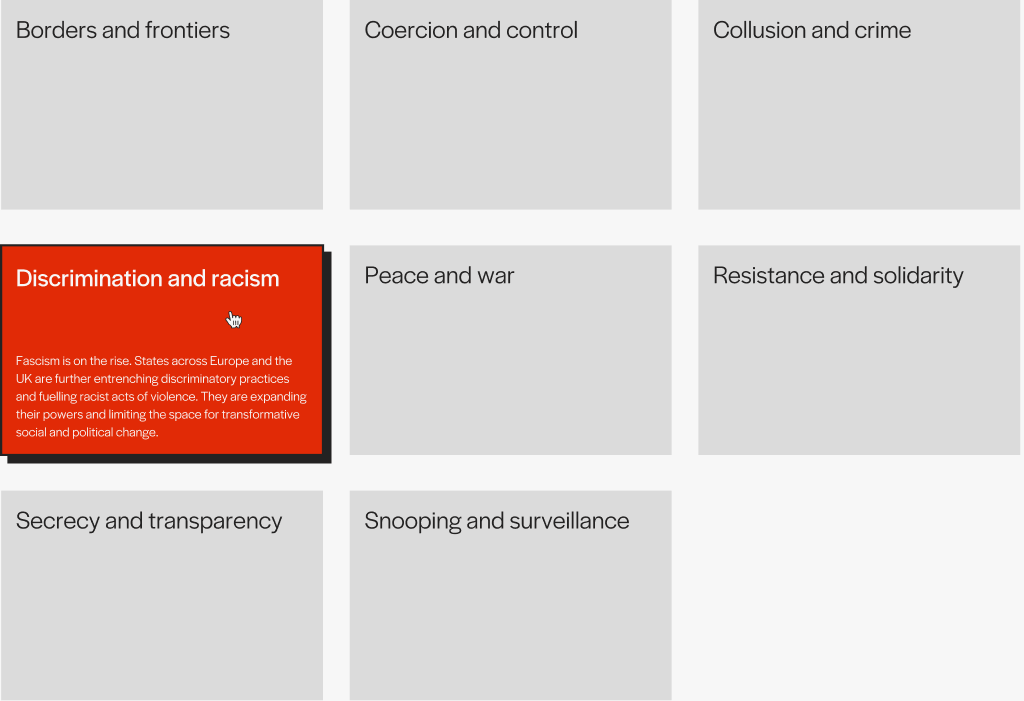
focus-areas-tiles Purpose: Three-column tile grid of focus areas with title + excerpt per tile. Lighter than focus-areas, used as a directory.
Where it is used: Our work page main listing.
Fields:
| Field | Type | Notes |
|---|---|---|
title |
Text | Section H2. |
Auto-loaded data: focus_areas array (from render.php), each with title, link, excerpt, color, is_light.
Hover behaviour: the tile heading uses the same weight as the focus-areas button labels on the homepage (.text-headline-6 / 400). The excerpt is hidden by default and revealed on hover at full opacity in solid white (or solid black on tiles flagged is_light) — never as a tint of the card's brand colour. Source: src/blocks-acf/focus-areas-tiles/style.scss.
Front-end (Figma — section view):
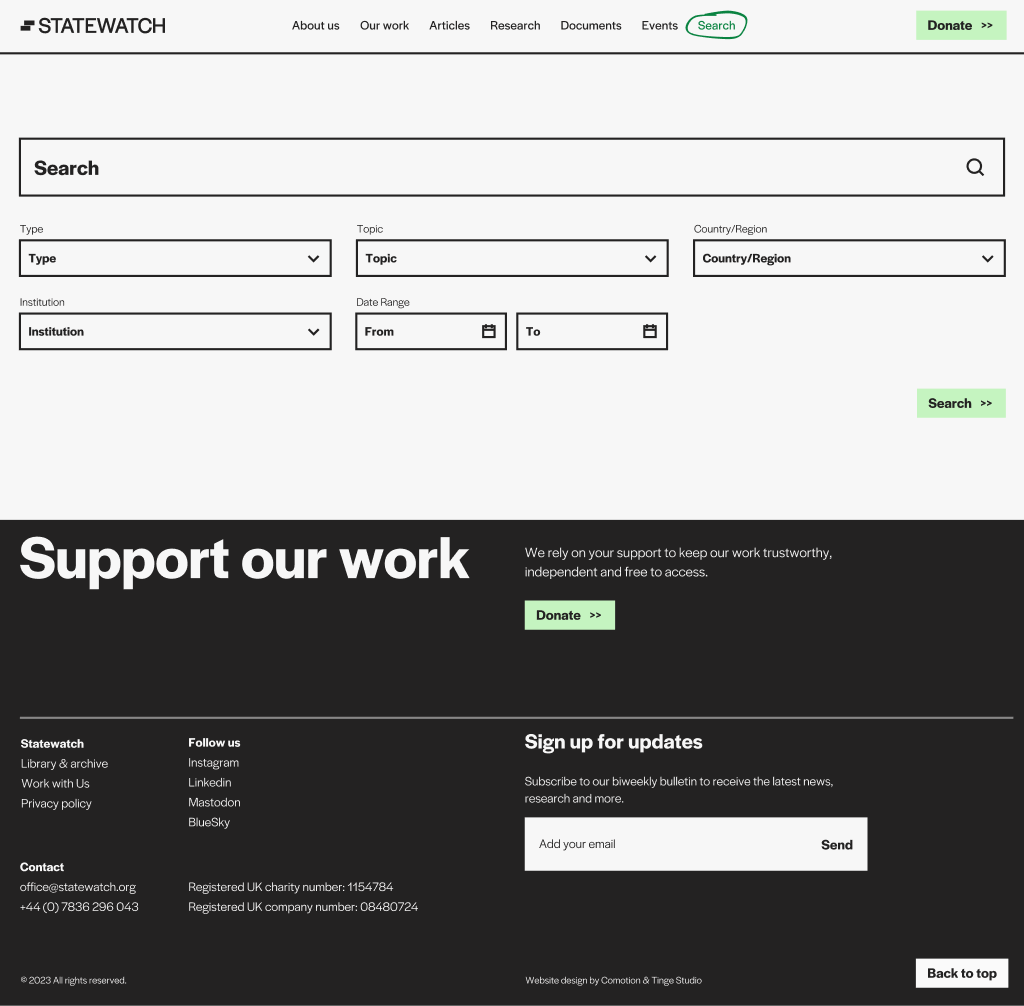
search Purpose: The full-page search experience: search input, multi-filter dropdowns (Type / Topic / Country / Institution / Date range), and a results area populated via AJAX.
Where it is used: /search/ page.
Fields: None. This block has no editor-facing fields; it is a fully-rendered widget.
Auto-loaded data (from render.php):
- type_terms — terms from sw_content_type
- topic_terms — sw_topic
- country_terms — sw_org
- institution_terms — sw_institution
- filter_nonce — nonce for the AJAX endpoint
- ajax_url — admin-ajax.php
- Date pickers use Flatpickr (initialised in view.ts).
AJAX backend: src/php/Ajax/SearchFilter.php. Returns rendered HTML cards.
Front-end (Figma — three states of the search block):

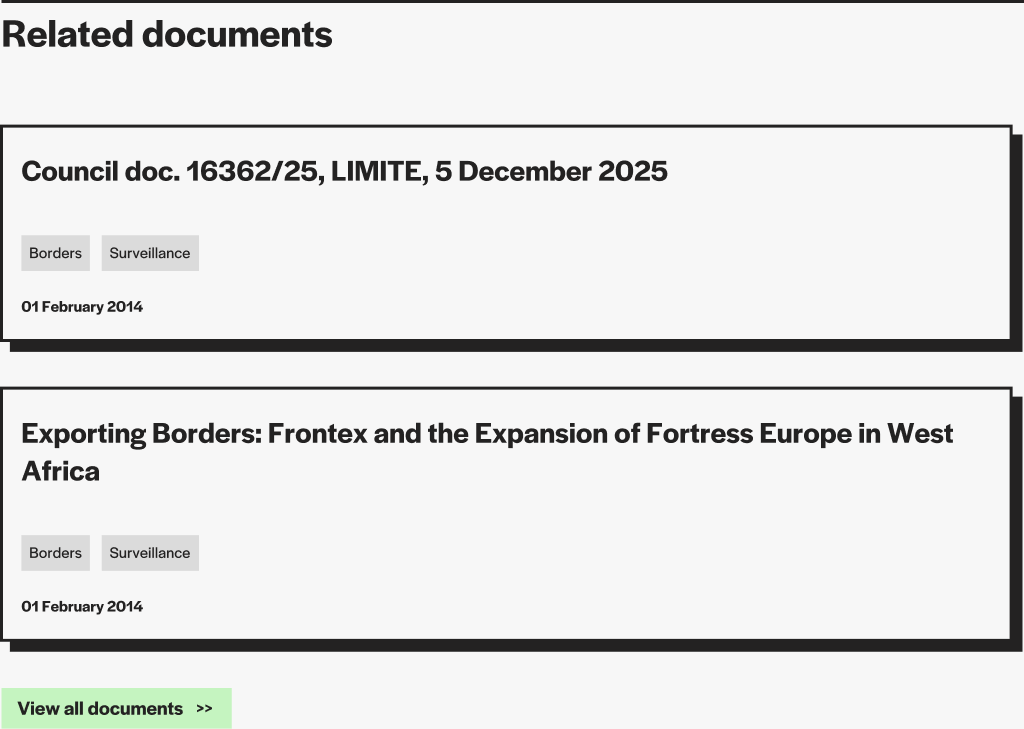
related-documentation Purpose: A list of related documents (manually curated by the editor) shown at the bottom of an article or research post.
Where it is used: Inside individual research / analysis posts where the editor wants to surface specific documents.
Fields:
| Field | Type | Notes |
|---|---|---|
title |
Text | Defaults to "Related documentation" if empty. |
documents |
Repeater | Each row: post (Post Object → statewatch_article), doc_pdf (URL — overrides the post's PDF). |
button |
ACF Link | Optional CTA at the bottom (e.g. "See all"). |
Front-end (Figma — section view):
Listing blocks query
statewatch_article(orperson/job) and render a list of cards. Most have only atitleeditable field — the actual content is auto-loaded from the matching CPT.
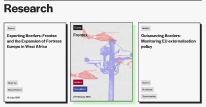
latest-articles Purpose: The homepage's "Latest articles" section. Shows the 2 most recent articles as large cards on the left, plus up to 7 more as small cards on the right (sticky on desktop).
Where it is used: Homepage.
Fields:
| Field | Type | Notes |
|---|---|---|
title |
Text | Section H2. |
button |
ACF Link | "See all" CTA. |
Auto-query (from render.php): statewatch_article posts with sw_content_type term ID 1160 (Articles → News), max 10, ordered by date DESC. The first 2 go to the left column, the next 7 to the right.
Front-end (Figma — full row: left tiles + right scrolling list):
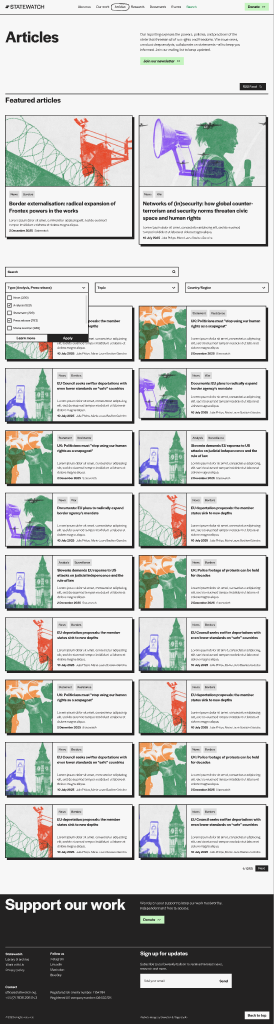
all-articles Purpose: Full Articles archive with filter dropdowns (Type / Topic / Country) and AJAX-driven pagination.
Where it is used: /articles/ page.
Fields:
| Field | Type | Notes |
|---|---|---|
title |
Text | Section H2 (header band, "All articles"). |
text |
Text | Subhead paragraph. |
button |
ACF Link | Optional CTA in the header. |
Auto-loaded data (from render.php):
- type_terms — children of term ID 1160 in sw_content_type (i.e. News, Analyses, etc.)
- topic_terms — sw_topic
- country_terms — sw_org
- filter_nonce, ajax_url
AJAX backend: src/php/Ajax/ArticleFilter.php. Action filter_articles. Returns paginated HTML cards (partials/post-card-small.twig).
Front-end (Figma — full block view):
latest-resarch (slug misspelled — do not rename)Purpose: Homepage "Latest research" section.
Where it is used: Homepage.
Fields:
| Field | Type | Notes |
|---|---|---|
title |
Text | Section H2. |
button |
ACF Link | "See all" CTA. |
Auto-query: statewatch_article posts with sw_content_type = Research, ordered by date DESC. The limit is set in the block's render.php.
⚠ The slug is
latest-resarch(sic — "resarch" instead of "research"). It is preserved as-is to avoid breaking existing block references in saved page content. Do not rename without a database migration.
all-research Purpose: Full Research archive with two sections: Active on top, Archived below (driven by sw_status).
Where it is used: /research/ page.
Fields:
| Field | Type | Notes |
|---|---|---|
title |
Text | Section H2. |
text |
Text | Subhead paragraph. |
button |
ACF Link | Optional CTA. |
Auto-loaded data: Active vs. archived split is rendered server-side. AJAX backend: src/php/Ajax/ResearchFilter.php.
Front-end (Figma — full block view):

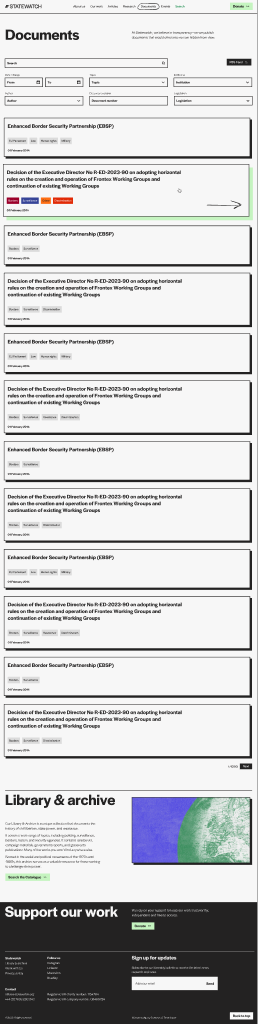
all-documents Purpose: Full Documents archive with filter dropdowns + Flatpickr date-range picker.
Where it is used: /documents/ page.
Fields:
| Field | Type | Notes |
|---|---|---|
title |
Text | Section H2. |
text |
Text | Subhead. |
button |
ACF Link | Optional CTA. |
Auto-loaded data: Document-relevant taxonomies (sw_content_type Documents subtree, plus institution / legislation / keyword filters). Date range: filters by Date (_swxi_sdp_document_datetime).
AJAX backend: src/php/Ajax/DocumentFilter.php (action: filter_documents, nonce: documents_filter_nonce).
Front-end (Figma — full block view):
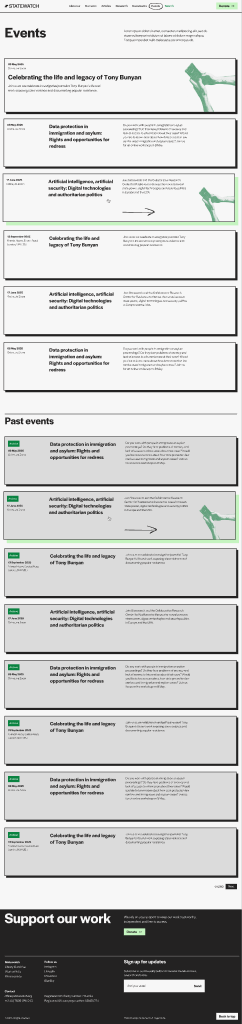
all-events Purpose: Events page with two sections — Upcoming (sorted ascending) and Past (sorted descending, badged with "Archive", grey background).
Where it is used: /events/ page.
Fields:
| Field | Type | Notes |
|---|---|---|
title |
Text | Section H2. |
text |
Text | Subhead. |
button |
ACF Link | Optional CTA. |
Auto-query: statewatch_article with sw_content_type = Events. The split into upcoming / past is by Event date (_swxi_event_date) (today's date as pivot).
Front-end (Figma — full block view):
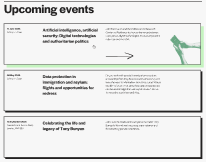
upcoming-events Purpose: Homepage "Upcoming events" section — only future events, sorted ascending.
Where it is used: Homepage.
Fields:
| Field | Type | Notes |
|---|---|---|
title |
Text | Section H2. |
button |
ACF Link | "See all" CTA. |
Auto-query: Same as all-events, restricted to events where _swxi_event_date >= today, sorted ASC.
Front-end (Figma — full section, header + event tiles):
annual-reports Purpose: A grid/list of annual report posts.
Where it is used: Annual reports landing page (or the homepage "About" section).
Fields:
| Field | Type | Notes |
|---|---|---|
title |
Text | Section H2. |
Auto-query: statewatch_article with sw_content_type = Annual Reports.
Front-end (Figma): No dedicated annual-reports listing in the Figma source. The block reuses the same card layout as Research — see all-research above.
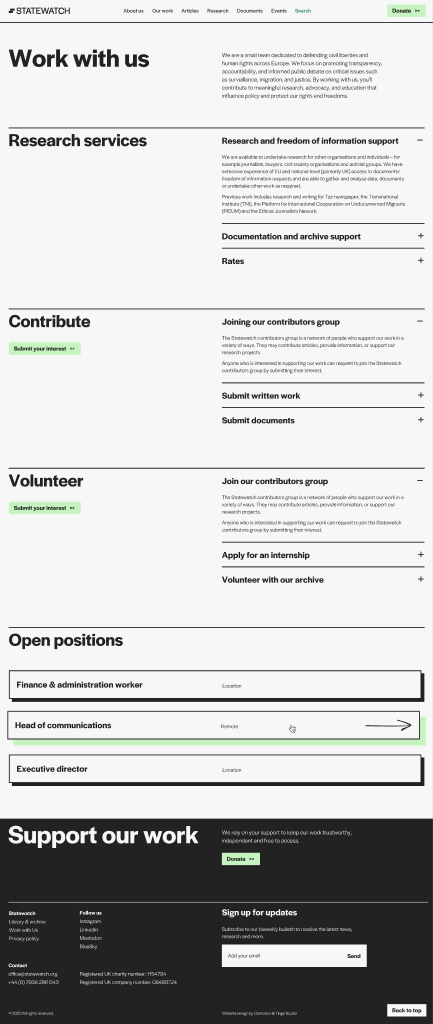
jobs Purpose: List of currently-open job openings.
Where it is used: Work with us page.
Fields:
| Field | Type | Notes |
|---|---|---|
title |
Text | Section H2. |
Auto-query: job CPT with post_status: publish, posts_per_page: -1, ordered by menu_order ASC. Closed jobs (status field = closed OR closed_date < today) are filtered out client-side.
Front-end (Figma — full block view, with hero header above):
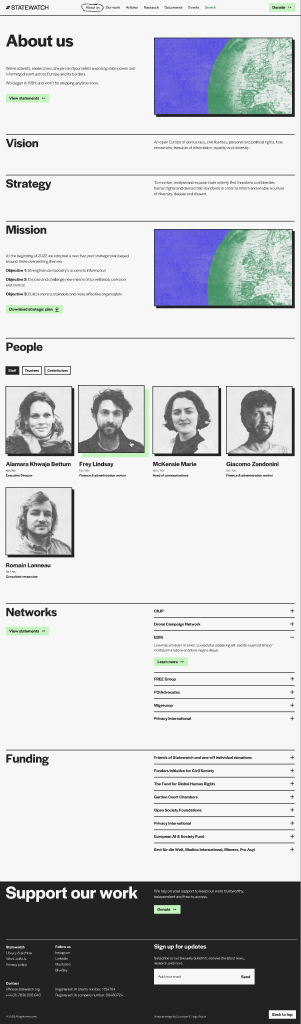
people Purpose: Filterable team page. Shows people grouped by person-category. Staff tab is active by default; other categories are tabs.
Where it is used: About us page (team section).
Fields:
| Field | Type | Notes |
|---|---|---|
title |
Text | Section H2. |
Auto-loaded data: categories (sorted: Staff first, then alphabetical), persons (initial set = first category, ordered by menu_order), filter_nonce, ajax_url.
AJAX backend: src/php/Ajax/PeopleFilter.php. Switching tabs fetches the next category's persons.
Front-end (Figma — full block view, with hero header and title-text-image above):
Single page layouts are picked by routing logic in the PHP layer (single-*.php), then rendered by Twig templates in views/. The table below summarises the routing:
| URL pattern (example) | Routing PHP | Twig | When |
|---|---|---|---|
/news/2025/.../{slug}/ |
single-statewatch_article.php |
single-article.twig |
statewatch_article posts not marked as Documents/Events/Research |
/jha-archive/{slug}/ |
single-statewatch_article.php |
single-document.twig |
sw_content_type: documents OR sw_article_source: jha-archive |
/publications/events/{slug}/ |
single-statewatch_article.php |
single-event.twig |
sw_content_type: events |
/publications/reports-and-books/{slug}/ |
single-statewatch_article.php |
single-research.twig |
sw_content_type: research (or any Research child) |
/focus-area/{slug}/ |
single-sw_focus_area.php |
single-focus-area.twig |
sw_focus_area posts |
/person/{slug}/ |
single-person.php |
single-person.twig |
person posts |
/job/{slug}/ |
single-job.php |
single-job.twig |
job posts |
Each layout below documents what the editor controls, what is auto-rendered, and where each piece of data comes from.
The article single layout is composed of three rows:
| Source | Field (admin label) | Effect on the front-end |
|---|---|---|
| Post | Title | Page <h1>. CSS class is text-headline-2 for ≤80 characters, text-headline-3 for >80 characters. |
| Taxonomy | Content type (sw_content_type) |
Article badge above the title. The first leaf term (term with a parent) is used — e.g. "News" or "Analyses" under Articles. |
| ACF | Report (report, File) |
When set, the Download Report button appears under the title and points at the uploaded file. If the ACF field is empty the template falls back to the legacy _swxi_sdp_pdf_attachment_id meta and renders the button from the attachment URL. |
The metadata sidebar lists only the rows whose source field is non-empty. Each label and value is rendered exactly as written in the admin.
| Sidebar label | Source | Notes |
|---|---|---|
| Date | _swxi_sdp_document_datetime ACF meta, formatted j F Y |
Falls back to the post's publish date if the ACF field is empty. |
| Author | _swxi_sdp_author ACF meta (free text) |
Distinct from the article Author (sw_author) byline — this is the document's drafter, not the editorial byline. |
| Co publisher | _swxi_sdp_addressee ACF meta |
|
| Publisher | _swxi_sdp_publisher ACF meta |
|
| Institution | sw_institution taxonomy terms |
Rendered as tag chips. |
| Topics | sw_topic taxonomy terms |
Rendered as tag chips. |
| Region | sw_org taxonomy terms |
Rendered as tag chips. |
| Related Legislation | sw_legislation taxonomy terms |
Rendered as plain text rows. |
| Share | Auto-injected — share button partial | Auto-built from the post URL + title. Editors do not configure it. |
The post's Featured image is rendered with the large size at full column width. If no featured image is set, a placeholder (assets/images/placeholder.png) is shown. On mobile the thumbnail appears in row 1 (above the meta sidebar) and this column is hidden.
Hide the featured image per post via the Display options → Hide featured image (
hide_featured_image) ACF toggle. When enabled, both the desktop hero column and the mobile hero strip are suppressed (the placeholder fallback too) — so posts that lead with an embed, chart, or pull quote can show that content right under the title without an empty placeholder above. Available on Articles and Research; see Section 4.1 for the field definition.
Left column (col-3) — sticky side menu (table of contents).
The side menu is not an editor field. It is built automatically by initArticleToc() (in app.ts) on every article single page:
<h2>, <h3> and <h4> inside the article body.id (slugified from its text) so it can be linked.<ul> of links inside the side menu nav, indented by heading level..is-active).To control what the side menu shows, the editor simply uses Heading 2 / Heading 3 / Heading 4 in the WYSIWYG of the article-body block (or whichever heading-bearing blocks are in the post). Adding a heading creates a new entry; removing it removes the entry. There is no "exclude this heading from the menu" option.
Right column (col-9) — Gutenberg content.
The article body is a stack of ACF blocks edited in Gutenberg. Each block is a separate, reorderable section of the article. Typical composition:
| Block | What it contributes to the article |
|---|---|
article-body |
The main rich-text body of the article (can be split across multiple instances if the editor wants different style / sidebar settings per section). Headings inside it feed the side menu. |
pull-quote |
Visually highlighted quote between sections. |
title-text / title-text-image |
Section dividers / call-out blocks within long articles. |
accordions / accordions-wide |
FAQ-style content. |
related-documentation |
Hand-curated list of document cards (with PDFs). |
support-cta |
Donation / newsletter prompt at the foot of the article. |
The visible "boxed" text-style sections that appear inside long-form articles (e.g. paragraphs framed with a subtle border) are not a separate ACF block — they are produced by HTML wrappers inside the WYSIWYG of the
article-bodyblock (typically<blockquote>or a styled<div>retained from a Word paste). They render through the.text-contentstyles applied to everyarticle-bodycontent area.
Footnotes are auto-wired by initArticleFootnotes() in app.ts. The mechanism supports both Word-pasted content and manually authored notes. To use them:
href="#fn-N" (or href="#_bookmark…" if pasted from Word). The visible text should be the number itself.<ol>) where each <li> is a footnote. Each footnote item must contain at least one external link (http…) — the script uses this to identify the OL as the footnote list (so any other ordered lists you used inside the article are ignored).On render, the script:
<sup> so it renders superscript.fnref-N (inline) and fn-N (in the list).↩ back-links to each item.If the inline reference count and footnote item count do not match, the surplus inline references stay wired but their popover is empty. Always keep the counts equal.
| Section | Source | When it shows |
|---|---|---|
| Author block (photo, name, position, link to profile) | ACF Post Object Author (sw_author) → person CPT |
When sw_author is set on the article. |
| Tags row | sw_keyword, sw_topic, sw_org, sw_institution, sw_legislation taxonomies |
When the article has terms in any of these taxonomies. |
| Related articles | ACF Relationship field related_articles (Post Object/Relationship pointing to other statewatch_article posts) |
When the field has at least one entry. The cards are rendered in the order set in the field. |
| Related research | ACF Relationship field related_research, additionally restricted to posts with sw_content_type = research |
When the field has at least one entry. |
| Related documents | ACF Relationship field related_documents. For each entry, the template also resolves the linked post's _swxi_sdp_pdf_attachment_id to surface the PDF link on the card. |
When the field has at least one entry. |
| Related events | ACF Relationship field related_events. For each entry, the template extracts _swxi_event_date (Ymd or Y-m-d) + _swxi_event_location and flags past events with is_past. |
When the field has at least one entry. |
How to populate Related sections (editorial steps):
Each related section is rendered with its own header partial and a "View all" CTA button at the bottom (the CTA URLs come from theme-options Post Object fields: All articles page, All research page, All documents page, All events page).
all_articles).sw_content_type term name.Front-end (Figma):
Front-end (Figma — version with side menu visible):
Front-end (Figma — Related documents section):
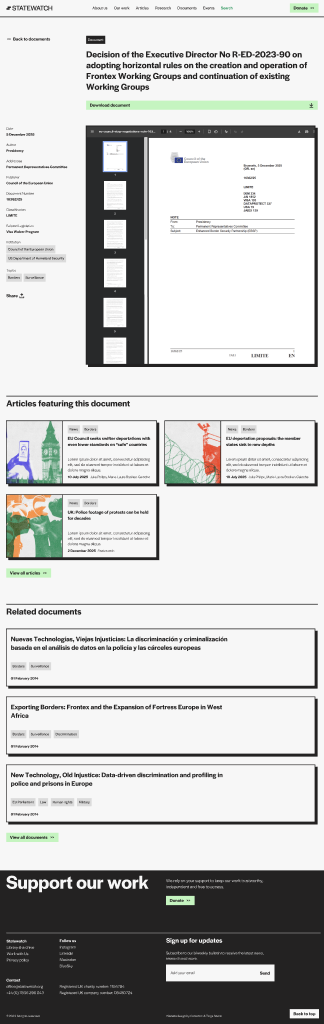
Layout: Two columns under a top "back / title / download" row: left col-3 = sticky metadata sidebar, right col-9 = embedded PDF viewer.
What the editor controls (all via ACF _swxi_sdp_* fields — see Section 8.2 for the field-by-field reference):
| Source | Field | Effect |
|---|---|---|
| Post | Title | The H1. Title class is text-headline-2 by default; switches to text-headline-3 when the title exceeds 80 characters. |
| ACF | PDF (_swxi_sdp_pdf_attachment_id) |
Hooks the PDF: drives the "Download document" button + the embedded viewer in col-9. |
| ACF | Date (_swxi_sdp_document_datetime) |
Sidebar → Date row. |
| ACF | Author (_swxi_sdp_author) |
Sidebar → Author row (free text — this is the document's author, not the article's Author (sw_author) byline). |
| ACF | Addressee (_swxi_sdp_addressee) |
Sidebar → Addressee. |
| ACF | Publisher (_swxi_sdp_publisher) |
Sidebar → Publisher. |
| ACF | Document number (_swxi_sdp_document_number) |
Sidebar → Document number. |
| ACF | Classification (_swxi_sdp_classification) |
Sidebar → Classification (LIMITE, RESTREINT UE, etc.). |
| ACF | Full title (Full title (_swxi_sdp_title)) |
Stored as the original (long) document title. The post title can therefore be a shortened display version. |
| Taxonomies | sw_keyword, etc. |
Tag row at the bottom. |
What is auto-rendered:
Front-end (Figma — short title):
Front-end (Figma — long title):
Layout: Top row = back link + badge + title. Below: metadata sidebar (Date / Time / Location / Host) + hero image + body content + Add-to-calendar button.
What the editor controls:
| Source | Field | Effect |
|---|---|---|
| Post | Title, Content, Featured Image | Standard. |
| ACF | Event date (_swxi_event_date) |
Sidebar Date + drives upcoming/past split. Format: Ymd string (e.g. 20260415). |
| ACF | Event location (_swxi_event_location) |
Sidebar Location. |
| Meta | Event time (_swxi_event_time) |
Sidebar Time. |
| Meta | Host (_swxi_event_host) |
Sidebar Host. |
| Add-to-calendar button | Driven by event date + location. Uses add-to-calendar-button library. |
Front-end (Figma):

Layout: Same skeleton as Article single, with two extras:
- Section badges row above the title — pulls from sw_section terms (e.g. Reports, Bulletins).
- Optional sidebar TOC — toggled per-post by the Show table-of-contents sidebar (show_navigation) ACF field (in the Research — Sidebar Navigation group). Recommended for long, multi-section research pieces. The TOC is auto-generated from H2 / H3 headings inside the body.
What the editor controls: same as Article single, plus:
| Source | Field | Effect |
|---|---|---|
| ACF | Downloadable PDF (optional) (report, ACF File) |
Powers the "Download Report" button at the top of the post. ACF group label: "Article — PDF Download Button". |
| ACF | Show table-of-contents sidebar (show_navigation, True/False) |
Toggles the TOC sidebar (left column). ACF group label: "Research — Sidebar Navigation". |
| ACF | Hide featured image (hide_featured_image, True/False) |
Suppresses the featured image (and the placeholder fallback) at the top of the post — desktop hero column and mobile hero strip both. ACF group label: "Display options". |
| Taxonomy | sw_section |
Section badge row above the title. |
Embed (iframe) blocks render full-width on Research singles — see Section 6.3 (embed-iframe) for the editorial workflow. No per-post toggle is needed; full-bleed is automatic on sw_content_type=research.
Front-end (Figma):
- 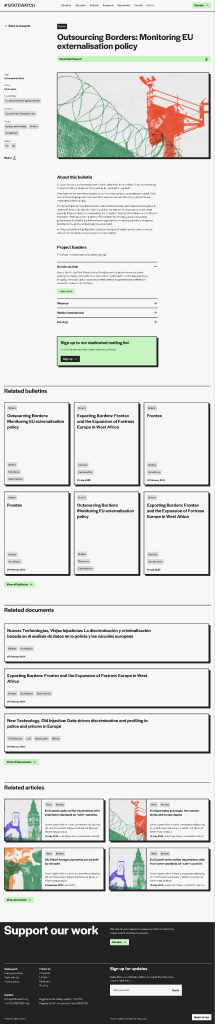 -
-
Layout: Coloured-background hero (background colour from focus area's brand colour) with title and a content box overlay. Below: related research + related articles sections.
What the editor controls:
| Source | Field | Effect |
|---|---|---|
Post (sw_focus_area) |
Title, Content, Featured Image | Hero title, hero content box, hero background image. |
| ACF | color |
Hero background colour (fa_color). |
| ACF | is_light |
Toggles text colour to dark (light hero version). |
Auto-rendered (related sections):
statewatch_article posts whose sw_keyword OR sw_topic terms intersect the focus area's Keywords / Topics ACF fields. Each list is paginated independently (?rpage= and ?apage= query parameters).Front-end (Figma):
Layout: Two-column profile. - Mobile order: name + pronunciation + position → image → body → contact. - Desktop: image right (col-5 offset-1) + content left (col-6).
What the editor controls:
| Source | Field | Effect |
|---|---|---|
Post (person) |
Title | Person's name (H1). |
| Post | Content | Bio (rendered with .text-content styles). |
| Post | Featured Image | Profile photo. |
| ACF | Pronouns / pronunciation (pronounce) |
Pronunciation/pronouns — small grey line under the name. |
| ACF | Position (position) |
Job title — H2 under the pronounce line. |
| ACF | LinkedIn (linkedin) |
LinkedIn icon link. |
| ACF | Email (email) |
Email icon link (mailto:). |
Auto-rendered: related articles (where sw_author = this person AND sw_content_type = News) and related research (same author, content type Research). Sourced via WP meta queries in single-person.php.
"Back to about" link: URL is pulled from the ACF Options field About page (about_page) (a Post Object → page).
Front-end (Figma):
Layout: Title under back link → divider → two-column row: sticky Apply button (col-3) + meta dl + body content (col-6).
What the editor controls: see Section 4.4 for the full ACF field list. Summary:
| ACF field | Effect on layout |
|---|---|
Apply link (apply_link) |
Sticky "Apply" button in the left column. |
Location (location) |
Meta row → Location. |
Type (type) |
Meta row → Job Type. |
Closing date (closed_date) |
Meta row → Closing date (rendered as j M. Y, e.g. 30 Mar. 2026). |
Status (status) |
Drives whether the job appears at all in the cross-reference list (closed is hidden). |
Auto-rendered: "Back to our jobs" link (URL from option → our_jobs ACF Link field), and an "Other open jobs" sidebar listing other job posts whose closed_date >= today and status != closed.
Front-end (Figma):
Documents are the most field-heavy content on Statewatch. This section is the field-by-field reference.
A Document is not a separate post type — it is a statewatch_article post that satisfies either:
sw_content_type is set to Documents (or any descendant), ORsw_article_source is set to jha-archive (legacy JHA Archive imports).When single-statewatch_article.php detects either condition, it routes to views/single-document.twig instead of the regular Article layout. That layout swaps the body for an embedded PDF viewer and replaces the article meta block with a document metadata sidebar.
Implication for editors: if you want to convert a regular article into a Document-style page, just change its Content type to Documents and add the PDF — the layout switches automatically.
_swxi_sdp_* fields explained Documents use ACF fields prefixed with _swxi_sdp_ (Statewatch Document Page) and, for Events, _swxi_event_. They are stored as post meta and read directly with get_post_meta() in the templates — not via Timber's post.meta(), because ACF interferes with underscore-prefixed keys when read through Timber.
For each field below: the meta key, the ACF admin label (if it differs), what it stores, and where it surfaces on the front-end.
| Meta key | Admin label | What it stores | Where it appears on the front-end | Notes |
|---|---|---|---|---|
_swxi_sdp_pdf_attachment_id |
PDF / Attachment | WordPress attachment ID of the PDF file | (a) Download document button under the H1; (b) embedded PDF viewer in col-9 of the document layout | Use the ACF File / Image picker. The picker stores the attachment ID; the URL is resolved via wp_get_attachment_url() at render time. |
_swxi_sdp_document_datetime |
Date | Document date | Sidebar → Date row, formatted j F Y (e.g. 15 April 2026) |
ACF Date Picker. Stored as Y-m-d typically. |
_swxi_sdp_document_number |
Document number | Reference number (e.g. 9375/98, PE 226 837 fin) | Sidebar → Document number | Free text. |
_swxi_sdp_classification |
Classification | EU classification marking (e.g. LIMITE, RESTREINT UE, PUBLIC) | Sidebar → Classification | Free text — not a taxonomy. |
_swxi_sdp_author |
Author | Document's author (institution / drafter — distinct from the article byline) | Sidebar → Author | Free text. Not the same as sw_author (Section 9). |
_swxi_sdp_addressee |
Addressee | Who the document is addressed to | Sidebar → Addressee | Free text. |
_swxi_sdp_publisher |
Publisher | Publishing institution | Sidebar → Publisher | Free text. |
_swxi_sdp_title |
Full title | Long / full document title; takes precedence over the post title when rendering the document <h1>. |
The H1 of single-document.twig (the post title acts as fallback). |
Free text. |
_swxi_event_date |
Event date | Date of the event | Event card + single-event sidebar | Format: Ymd string (e.g. 20260415). |
_swxi_event_location |
Event location | Event location text | Event card + single-event sidebar | Free text. |
Re-import behaviour: the XML Importer deduplicates by Umbraco ID (stored in
cms_article_idmeta — see Section 12). On re-import, depending on the chosen mode, these fields can be overwritten with the values from the source XML. If you have manually edited a_swxi_sdp_*field and a re-import is scheduled, your edit may be lost..
article-body is the right block.)` fields filled. Annotate each field with its meta key.*
Until this annotated screenshot is produced, use Section 8.2 — the table maps every meta key to its front-end location.
⚠ Important: authorship on Statewatch is not the standard WordPress Author dropdown. It is the ACF Post Object field Author (
sw_author), which links the article to apersonCPT post. Read this section carefully — it is the most common source of confusion for new editors.
Step by step:
sw_author), type: ACF Post Object → person).person posts.The person must already exist as a person CPT post. If their name does not appear:
person-category taxonomy.Do NOT use the WordPress Document → Author dropdown in the right sidebar. That field stores the WordPress user who created the post (used internally for permission checks). It is not displayed on the front-end of the Statewatch theme. Editors who try to "set the author" through the WP sidebar end up with an article that displays no byline at all.
The current site does not appear to have a Co-Authors Plus plugin or a multi-author repeater. The Author (sw_author) field is a single Post Object — only one person per article.
single-person.php queries articles using both single-value and serialised-array forms of the Author (sw_author) meta (compare = NUMERIC and compare LIKE '"123"'), so the field accepts both single Post Object and multi-select repeater modes. Whichever mode is currently active is set in Custom Fields → Field Groups → Article.
If multiple authors are needed editorially, the workaround is to put the additional names in the body text (e.g. "By Alice Smith and Bob Jones") until the schema is extended.
The author byline (name + photo + position) surfaces in:
| Front-end element | Where the byline appears | Card partial |
|---|---|---|
| Article single page | Header (under the title) and again in the footer | views/single-article.twig |
| Research single page | Same | views/single-research.twig |
| Person single page | "Articles by this person" listing — uses sw_author = current person to query |
views/single-person.twig |
| Article cards in listings | Yes — partials/post-card-small.twig, partials/post-card-large.twig |
(card partials) |
| Document cards | No — Documents replace the byline with classification + document number | partials/post-card-document.twig |
| Event cards | No — Events show date + location instead | partials/event-card.twig |
Person cards in people block |
The card is the person — no byline needed | partials/post-card-person.twig |
What the byline contains:
position))/person/{slug}/Each person post has its own URL at /person/{slug}/. The page shows:
statewatch_article posts where sw_author = this person AND sw_content_type = Newssw_content_type = ResearchThe "back to about" link at the top of the profile is configurable via the theme options page (ACF Link field About page (about_page)).
The standard WordPress author archive (/author/{user-slug}/) is not used by this theme and may render an empty page. Editors should never link to it.
| Use case | Recommended source dimensions | Max file size (source) | Notes |
|---|---|---|---|
| Hero background | 2880 × 1620 px (2× of 1440 layout) | ~600 KB | LCP image — keep small. AVIF auto-generated. |
hero-title-image / title-text-image / what-we-do |
1440 × 1440 px | ~500 KB | Sizes attribute requests (min-width: 992px) 50vw, 100vw. |
| Featured image (article / research / event card) | 1200 × 800 px (3:2 aspect) | ~300 KB | Used both in cards and as the hero on the single page. |
| Person profile photo | 800 × 800 px (square) | ~250 KB | Cropped to square at render. |
| Focus area hero image | 1920 × 1200 px | ~500 KB | Sits behind the focus area title overlay. |
| In-line article body image | 1200 px wide | ~200 KB | Auto-scaled inside .text-content. |
Accepted source formats: JPG, PNG. Use JPG for photographic content (smaller), PNG only when transparency is needed.
SVG: uploads of SVG files are enabled via the svg-support plugin. Use sparingly — only for icons/logos, never for content images.
File naming: lowercase, hyphen-separated, descriptive (e.g. frontex-budget-2025-graph.png, not IMG_4321.PNG). The slug is what appears in the URL of the attachment.
When you upload an image, the theme triggers a background AJAX handler that produces:
These are stored next to the original file (e.g. image.jpg, image.webp, image.avif).
The views/partials/image.twig partial then outputs a <picture> element with <source type="image/avif">, <source type="image/webp">, and a fallback <img>. Modern browsers pick AVIF (~30% smaller than JPG); older browsers fall back gracefully.
If WebP/AVIF is not generated for an upload (you can verify by checking the file alongside the original in the Media → Library):
role="presentation" if you have HTML access. Filling alt with junk is worse than leaving it empty.PDFs for Document posts (Section 8) are uploaded via the ACF media picker on the PDF (_swxi_sdp_pdf_attachment_id) field, not via the WP featured image control.
Steps:
File size: PDFs over the host's PHP upload_max_filesize will fail. For very large reports, split or compress before upload.
File naming: the original filename becomes part of the URL — use clean names (e.g. 9375-98-frontex-mandate.pdf, not Scan_2024-12-19__final_v3 (1).pdf).
Block: contact-form (Section 6.3) — only appears on the Contact page in the standard build.
Backend: src/php/Ajax/Contact.php. Action: send_contact_form. Nonce: form_contact_nonce.
Where submissions go:
contact_email).contact_email) is missing or invalid, the form falls back to the WordPress site admin email (get_option('admin_email')).contact_email) to a shared mailbox.Submitted fields:
| Field | Required | Validation |
|---|---|---|
name |
Yes | Non-empty |
organisation |
No | — |
Email (email) |
Yes | Valid email format |
message |
Yes | Non-empty |
phone |
If submitted | At least 7 digits (after stripping non-digits) |
agree (consent checkbox) |
If present | Must equal 1 |
Anti-spam:
- Honeypot field hp_input — hidden from humans, filled by bots → silent reject.
- Timestamp _ts — submissions faster than 2 seconds are rejected.
- Flood throttle — Contact.php calls set_transient($key, 1, 1) (1-second TTL) per submission, gating the next request from the same IP for that window.
Editor todo if mail breaks:
Contact email field has a working email address.Where it lives in admin: Newsletter & API in the WP sidebar (top-level menu, position 80, icon dashicons-email). Configured by src/php/Settings/BrevoOptions.php.
Settings fields (verified in code):
| ACF field name | Label | Type | Notes |
|---|---|---|---|
Brevo API key (brevo_api_key) |
Brevo API Key | Password | API key from Brevo → Settings → API Keys. Stored as a normal WP option (not encrypted on disk). |
Brevo contact list ID (brevo_list_id) |
Brevo Contact List ID | Number | Numeric ID of the contact list in Brevo → Contacts → Lists. |
There is no "double opt-in" toggle in the current settings page. Whether subscribers go through Brevo's double opt-in is configured on the Brevo side (in Brevo's Marketing settings for the list).
How subscriptions flow:
newsletter_subscribe (handler: src/php/Ajax/Newsletter.php) validates the email, runs anti-spam (honeypot + timestamp).https://api.brevo.com/v3/contacts with the configured API key + list ID and updateEnabled: true (so re-submitting the same email refreshes the contact rather than failing).Editor / admin todo if subscriptions stop working:
brevo_api_key) is filled. If empty, the handler logs a warning and shows the user a generic success message — the contact is silently dropped.brevo_list_id) matches an active list in your Brevo dashboard.wp-content/debug.log (search for "Newsletter Brevo error").Scope of this section: how to use the importer day-to-day and how Umbraco data maps onto WordPress objects so editors know what to change vs. leave alone. Migration internals (parser, retry logic, Excel index) are out of scope — see
wp-content/plugins/statewatch-xml-importer/IMPORT-GUIDE.mdif you need them.
The Statewatch XML Importer (plugin namespace SWXI) is a custom WordPress plugin that imports articles from the old Statewatch Umbraco CMS into WordPress. It was built for the migration in late 2025 and is now used for incremental updates and corrections — not for the bulk one-time load (which is already complete).
Three Umbraco document types end up in one WordPress post type:
| Umbraco type | Volume (target) | What it became |
|---|---|---|
JhaArticle |
~14k | statewatch_article posts with sw_article_source: jha-archive — JHA Archive document records |
CmsArticle |
~13k | statewatch_article posts with sw_article_source: news — current news / analyses |
DBArticle |
~25k (most excluded) | statewatch_article posts with sw_article_source: legacy-database — only ~2k actually migrated; the rest is the "database" content excluded from migration (Section 12.7) |
The importer is idempotent: running it twice on the same data does not produce duplicates. Deduplication key: the original Umbraco ID, stored in WordPress as a post meta field (the cms_article_id key). If a post with that meta value already exists, the importer either updates it or skips it depending on mode.
This is the one cheat sheet to keep open when answering editorial questions about imported content.
| Umbraco object | Where it lives in WordPress | Editor visibility |
|---|---|---|
Umbraco document type (JhaArticle / CmsArticle / DBArticle) |
sw_article_source taxonomy term |
Visible — Article Sources taxonomy column on the article list. Do not change unless you mean to change the layout. |
Umbraco URL path (e.g. /news/2025/december/...) |
sw_section taxonomy term hierarchy |
Visible — Sections meta box. Hierarchy mirrors Umbraco folders. |
URL containing /archive/, -archive/, /archived/ |
sw_status: Archived |
Visible — Status meta box. Auto-set on import. |
URL matching PATH_MAPPINGS rule (see ContentTypeMapper.php) |
sw_content_type taxonomy |
Visible — Content type meta box. Drives the layout. |
Umbraco Sdp_keywords / Sdp_statewatchkeywords / Keywords (merged) |
sw_keyword terms |
Visible — Statewatch Keywords. |
Umbraco TopicTags (DBArticle only) |
sw_topic terms |
Visible — Statewatch Topics. |
Umbraco OrganisationalTags (DBArticle only) |
sw_org terms |
Visible — Statewatch Organisations. |
Umbraco Sdp_pdfFile |
_swxi_sdp_pdf_attachment_id post meta + uploaded PDF in Media library |
Visible — ACF PDF field. |
Umbraco Sdp_documentDate |
_swxi_sdp_document_datetime post meta |
Visible — ACF Date field. |
Umbraco Sdp_documentNumber |
_swxi_sdp_document_number |
Visible — ACF Document number. |
Umbraco Sdp_classification |
_swxi_sdp_classification |
Visible — ACF Classification. |
Umbraco Sdp_author |
_swxi_sdp_author |
Visible — ACF Author (document author, free text). |
Umbraco Sdp_addressee |
_swxi_sdp_addressee |
Visible — ACF Addressee. |
Umbraco Sdp_publisher |
_swxi_sdp_publisher |
Visible — ACF Publisher. |
Umbraco Sdp_title |
_swxi_sdp_title |
Visible — ACF Full title. Stored separately so the post title can be a shortened display version. |
| Umbraco internal node ID | post meta cms_article_id |
Hidden / do not edit. This is the dedup key. |
Umbraco documentTypeAlias |
Used internally during mapping; ends up in sw_article_source term |
Hidden. |
✅ Safe to edit (these are why editors have the admin):
_swxi_sdp_* and _swxi_event_* ACF fields (Section 8.2)sw_content_type, sw_status, sw_keyword, sw_topic, sw_org, sw_section, sw_institution, sw_legislationsw_author) ACF field, Section 9)⚠ Avoid editing unless you really mean it:
sw_article_source — changing this can flip the front-end layout (jha-archive → Document layout etc.)._swxi_sdp_pdf_attachment_id) if a PDF is already correct — replacing it removes the original from view (it stays in Media library, but the article points at the new one).❌ Never edit by hand:
cms_article_id meta. It is the deduplication key against re-imports. If you change or remove it, the next import will create a duplicate of this article instead of updating it. (Hidden in standard admin views; only visible if a custom-fields plugin is configured to show it.)When the importer encounters an Umbraco ID it has seen before, the behaviour depends on the mode chosen:
| Mode | Effect on existing posts | Use case |
|---|---|---|
| Skip if exists (default) | Nothing — the existing post is left untouched. | Adding new content from Umbraco without disturbing edits made in WordPress. |
| Update | Overwrites all imported fields on the existing post with values from the source XML. Editor edits to title, content, ACF fields, and even taxonomies imported from Umbraco may be lost. | Bulk re-syncing after a source data correction in Umbraco. |
| Dry run | Reports what would happen without writing. | Always run first when in doubt. |
Editorial implication: if you have manually edited a _swxi_sdp_* field (e.g. corrected a typo in the document author), and someone runs an Update import that re-syncs the same record from Umbraco, your correction is lost. Coordinate update imports with the editorial team.
import-structure then import The importer has two distinct phases. They must be run in this order:
import-structure — populates the sw_section taxonomy with the Umbraco folder hierarchy. Reads the structure analysis file and creates ~527 section terms with parent/child relationships. This only needs to run once (or after structural changes in the source). Without it, individual article imports cannot place articles into sections, and URLs end up flat.import — imports the articles themselves, assigning them to the section terms created in step 1.Worked example (WP-CLI in a Local Site Shell):
# Step 1 — populate sections (run once)
wp swxi import-structure

# Step 2 — pick what to import. Examples:

# Test: 5 articles, no media, dry run
wp swxi import --type=CmsArticle --limit=5 --skip-media --dry-run

# Real run, 50 newest CmsArticles, with images and PDFs
wp swxi import --type=CmsArticle --limit=50

# JHA Archive (always include media — they are the documents)
wp swxi import --type=JhaArticle --limit=20

# Update mode (CAREFUL — overwrites editor edits)
wp swxi import --type=CmsArticle --limit=10 --update
There are three interfaces. Pick by audience:
| Interface | Where it is | Audience | Limit |
|---|---|---|---|
| Admin UI | Tools → Import Articles | Editors / non-CLI users | Max 100 articles per run (prevents PHP timeout) |
| WP-CLI | Local Site Shell or production WP-CLI | Devs / admins on production | No limit |
| Standalone CLI | php import-cli.php from the plugin directory |
Environments without WP-CLI | No limit |
Admin UI flow (recommended for editors):
CmsArticle, JhaArticle, DBArticle).Auto-assignment helpers run automatically on every save:
?swxi_content_type=..., the plugin pre-selects the Content type taxonomy on save.These run only on first save, never on re-edit, and never if the editor has manually selected sections / content type. They are why "everything just works" when an editor adds a brand-new news article.
/statewatch-database/) About 22,960 records under the /statewatch-database/ URL prefix were intentionally excluded from migration. These are legacy database entries (mostly DBArticle) that the editorial team determined were either obsolete, duplicative, or out of scope for the new site.
If an editor needs to reintroduce one of these records:
Do not try to re-enable the bulk /statewatch-database/ import — the exclusion is intentional and reversing it floods the WordPress search with low-quality content.
Each recipe ends with a Verify on the front-end checklist — always do it before declaring the job done.
statewatch_article by sw_content_type=news, and Add New under it pre-applies the News term). The unfiltered list is at All Posts.article-body block. Set Show sidebar on if the article has H2/H3 sections totalling more than ~600 words.pull-quote blocks where you want big quotes (Section 6.3).related-documentation block at the bottom if you want to surface specific PDFs./news/{year}/{month}/{slug}/).,-separated).person post (Section 9.1).Verify on the front-end:
/news/{year}/{month}/{slug}/./articles/._swxi_sdp_title), see step 5)._swxi_sdp_* fields (Section 8.2):Verify on the front-end:
/jha-archive/{slug}/ (legacy) or /publications/{section}/{slug}/ (new)./documents/ listing.article-body block)._swxi_event_date) — pick the date. ⚠ Stored as Ymd string (e.g. 20260415). The ACF picker should be configured to output this format._swxi_event_location) — free text (e.g. Brussels, Belgium)._swxi_event_time) meta._swxi_event_host) / Co-host (_swxi_event_cohost) meta.external_url) (or Register link (external_link)).Verify on the front-end:
/events/ under Upcoming.Effect:
- Removed from "latest" feeds (homepage, /articles/ first page, etc.).
- Still searchable.
- For Events and Research: surfaces in the Past / Archived tab of the listing.
Reversible at any time — flip back to Active.
pronounce) — pronouns / pronunciation hint (optional).position) — job title (e.g. Director, Researcher).linkedin) — LinkedIn URL.email) — public-facing email (recommend a forwarding alias, not a personal address).Verify on the front-end:
/person/{slug}/.sw_author) on an article, the article shows up under "Articles by this person" on the profile page.location) — e.g. London / Remote.type) — e.g. Full-time, Contract.apply_link) — ACF Link to the application form / mailto.closed_date) — closing date in d/m/Y format. ⚠ Strict — see Section 4.4.status) — open / closed. Leave on open.Verify on the front-end:
/work-with-us/.focus-areas-tiles block.article-body).single-sw_focus_area.php):color — hex/CSS colour for the hero background.is_light — toggle for dark text on light backgrounds./focus-area/{slug}/.Verify on the front-end:
focus-areas block./focus-area/{slug}/ renders the hero + content box.statewatch_article to the article you want to feature.Verify on the front-end:
/ in an incognito window (avoid your editing cache).Listing blocks (Section 6.7) and many cross-references (related sections, focus area pages) render content as cards. There are eight distinct card variants on Statewatch — each has its own partial in views/partials/ and consumes a specific subset of the post's fields and taxonomies.
This section is the cheat-sheet: per card type, exactly which post field / taxonomy term shows up where on the visible card.
Tag colours: most card chips read a CSS custom property
--tag-colorfrom the term's_sw_colormeta (where present), so editors can colour-code keywords/topics/sections term-by-term in Statewatch Keywords / Topics / Sections term editor.
Partial: views/partials/post-card-large.twig
Used by: latest-articles (left column, 2 large cards), all-articles, related-articles section under articles, hero block (bottom-right).
| On-card element | Source on the post |
|---|---|
| Top tag (small, dark) | First leaf term from sw_content_type (i.e. News or Analyses under Articles). |
| Second tag | First term from sw_topic (if present). |
| Image | Featured image (size: large). Falls back to assets/images/placeholder.png. |
| Title | Post Title. |
| Excerpt (≤ 20 words, ellipsised) | Post Excerpt. |
| Date | Post publish date, formatted j F Y. |
| Author name (small, after date) | WordPress post.author.name — NOT the ACF sw_author byline. This card uses the WordPress post author for the small caption only. The full byline (with photo + position) appears on the article single page from sw_author. |
Front-end (Figma):
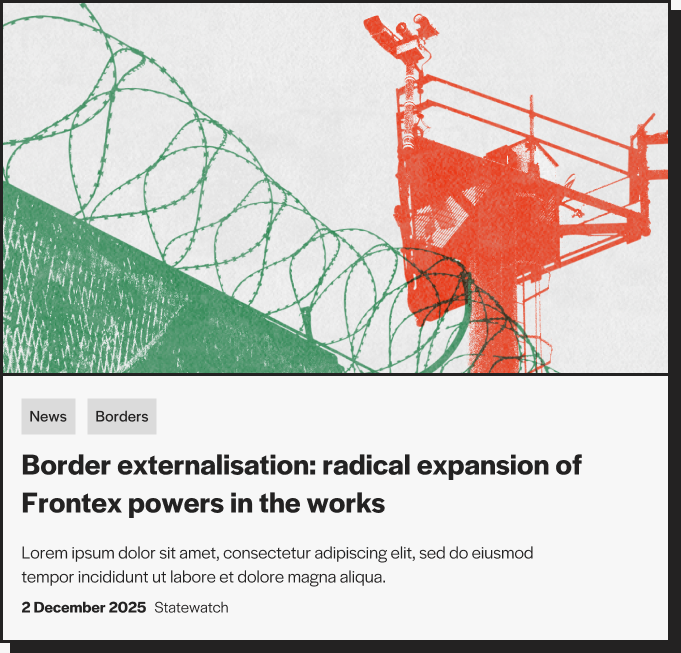
Partial: views/partials/post-card-small.twig
Used by: latest-articles (right scrolling column), all-articles filter results, related-articles tile lists.
Source mapping is identical to the large variant. Visual difference: image is on the left (fixed thumbnail), text on the right.
| On-card element | Source on the post |
|---|---|
| Image (small, fixed-width) | Featured image (size: medium). |
| Top tag | First leaf term from sw_content_type. |
| Second tag | First term from sw_topic. |
| Title | Post Title. |
| Excerpt (≤ 20 words) | Post Excerpt. |
| Date | Post publish date, formatted j F Y. |
| Author caption | WordPress post.author.name. |
Front-end (Figma):
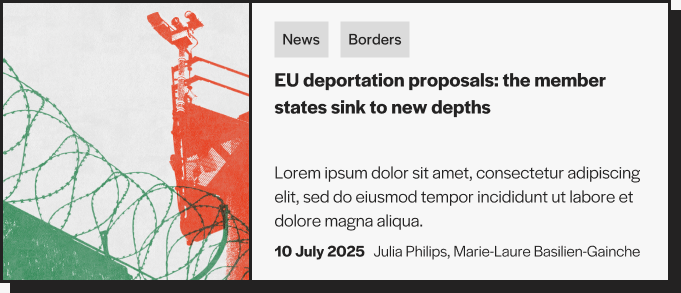
Partial: views/partials/post-card-document.twig
Used by: all-documents block, related-documents section under articles, related-documentation block.
| On-card element | Source on the post |
|---|---|
| Card link target | If a PDF URL is set (doc_pdf parameter), opens the PDF in a new tab; otherwise navigates to the document single page. |
| Title | Full title (_swxi_sdp_title) ACF meta if present, otherwise post Title. |
| Tag chips (up to 8) | First 8 terms from sw_keyword. |
| Date | Date (_swxi_sdp_document_datetime), formatted j F Y. |
| Hand-drawn arrow | Decorative SVG, no source mapping. |
Document cards do not show an image, an author, or an excerpt. They are deliberately bibliographic.
Front-end (Figma):

Partial: views/partials/post-card-research.twig
Used by: latest-resarch, all-research, Our work page, focus-area related-research section.
| On-card element | Source on the post |
|---|---|
| Background image (full-card, with overlay) | Featured image (size: large). Without an image the card uses solid background. |
| "Archive" tag (top-left) | Shown when the card is rendered with is_archived: true (e.g. inside the Past tab of all-research). Not a taxonomy term — passed in by the block. |
| Section tag(s) | sw_section terms (only those with ≤4-word names — longer ones are skipped to keep tags compact). Each chip uses the term's _sw_color meta as its colour. |
| Title | Post Title. |
| Topic chips (up to 3) | First 3 terms from sw_topic, each colour-coded via _sw_color meta. |
| Date | Post publish date, formatted j F Y. |
Front-end (Figma):
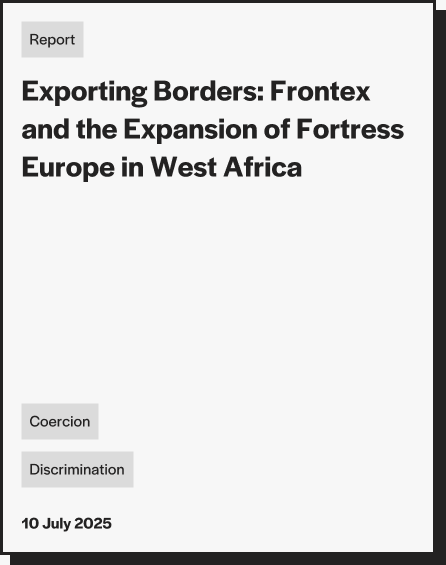
Partial: views/partials/post-card-annual-report.twig
Used by: annual-reports block.
Identical layout to the research card, with one difference: the top tag row pulls from sw_content_type (every term assigned to the post) instead of sw_section. Topic chips below still come from sw_topic.
| On-card element | Source on the post |
|---|---|
| Background image | Featured image (size: large). |
| Top tag chips | All sw_content_type terms on the post (typically Annual Reports + sub-types if any). Colour-coded via _sw_color meta. |
| Title | Post Title. |
| Topic chips (all, not capped) | Every sw_topic term, colour-coded. |
| Date | Post publish date, formatted j F Y. |
Partial: views/partials/event-card.twig
Used by: all-events, upcoming-events, related-events section under articles.
The event card is a horizontal four-column row. Past events render with a grey background and an "Archive" badge above the date.
| On-card element | Source on the post |
|---|---|
| Date column — date | Event date (_swxi_event_date, Ymd string), formatted by the block before rendering. |
| Date column — location | Event location (_swxi_event_location). |
| "Archive" badge above date | Shown when is_past: true (event date in the past). Set by the block, not by the editor. |
| Title column | Post Title. |
| Description column | Post Excerpt. |
| Right thumbnail (small, square) | Featured image (size: medium). Hidden when missing. |
| Card greyscale background | Applied automatically when is_past: true (CSS class event-card--past). |
Front-end (Figma):
Partial: views/partials/post-card-person.twig
Used by: people block.
| On-card element | Source on the person post |
|---|---|
| Photo | Featured image (size: large). |
| Name | Post Title. |
| Pronunciation | Pronouns / pronunciation (pronounce) ACF text field. |
| Position | Position (position) ACF text field. |
The card has no taxonomy chips — person-category is used to filter which persons appear in which people block tab, not to label the card.
Front-end (Figma):
Partial: views/partials/job-card.twig
Used by: jobs block, "Other open jobs" sidebar on the job single page.
The job card is a single horizontal row — title on the left, location chip in the middle, hand-drawn arrow on the right.
| On-card element | Source on the job post |
|---|---|
| Title | Post Title. |
| Location text | Location (location) ACF text field. |
| Arrow | Decorative SVG. |
The job's Type, Apply link, and Closing date fields are not shown on the card — they appear on the job single page only.
Front-end (Figma):

Used by: focus-areas-tiles block (3-column grid on Our work) and as a colour label in the focus-areas block.
| On-card element | Source on the sw_focus_area post |
|---|---|
| Tile background colour | Hero background colour (_sw_fa_color meta). |
| Title | Post Title. |
| Excerpt (tile variant only) | Post Excerpt. |
| Hover-state behaviour | Toggled by the is_light ACF flag — light tiles flip text to dark on hover, dark tiles keep text white. |
Front-end (Figma):

| Taxonomy | Article-large | Article-small | Document | Research | Annual report | Event | Person | Job | Focus-area |
|---|---|---|---|---|---|---|---|---|---|
sw_content_type |
1st chip (leaf) | 1st chip (leaf) | — | — | All chips (top row) | — | — | — | — |
sw_topic |
2nd chip | 2nd chip | — | Up to 3 chips (bottom) | All chips (bottom) | — | — | — | — |
sw_keyword |
— | — | Up to 8 chips | — | — | — | — | — | — |
sw_section |
— | — | — | All chips (top row, ≤4-word names) | — | — | — | — | — |
sw_org |
— | — | — | — | — | — | — | — | — |
sw_institution |
— | — | — | — | — | — | — | — | — |
sw_legislation |
— | — | — | — | — | — | — | — | — |
sw_status |
— (filters) | — (filters) | — (filters) | "Archive" tag if archived | — | — | — | — | — |
sw_article_source |
— | — | — (decides which layout the parent post uses) | — | — | — | — | — | — |
person-category |
— | — | — | — | — | — | tab filter only | — | — |
"—" means the taxonomy is not displayed on that card variant. Some taxonomies (e.g.
sw_org,sw_institution,sw_legislation) are only surfaced on the full single-page sidebar, never on cards.
| Term | Definition |
|---|---|
| ACF | Advanced Custom Fields PRO. The plugin that makes the field-driven editorial experience possible. Provides custom field UIs, the ACF Block API used by every Statewatch block, and the post-type / taxonomy registration UI used for person and job. |
| ACF Block | A Gutenberg block whose fields are defined by ACF rather than hard-coded in JavaScript. All 28 of Statewatch's blocks are ACF blocks. |
| Active / Archived | The two terms of the sw_status taxonomy. Drives whether a post is visible in "latest" feeds. |
| Annual Report | A statewatch_article with sw_content_type: Annual Reports. |
| Article (Statewatch sense) | A statewatch_article post with sw_content_type: Articles → News or Analyses. Renders with the Article single layout. |
| Article (WordPress sense) | A WP post (rarely used here — Statewatch uses statewatch_article instead). |
| Brevo | The email-marketing service that powers the newsletter. Configured at Newsletter & API in the admin sidebar. |
| Content type | The most important taxonomy on statewatch_article — sw_content_type. Decides which front-end layout renders the post. |
| CPT | Custom Post Type. A post type beyond WordPress's built-in post / page. Statewatch has 5 CPTs. |
| CmsArticle | Legacy Umbraco document type. In WordPress: sw_article_source: news. |
| DBArticle | Legacy Umbraco document type. Most are excluded; the few migrated have sw_article_source: legacy-database. |
| Document | A statewatch_article with sw_content_type: Documents (or sw_article_source: jha-archive). Renders with the Document single layout (sidebar metadata + PDF viewer). |
| Document number | Free-text field (Document number (_swxi_sdp_document_number)). Reference number assigned by the publishing institution. |
| Event | A statewatch_article with sw_content_type: Events. Has Event date (_swxi_event_date) and Event location (_swxi_event_location). |
| Featured Image | WordPress's standard "set featured image" field. Used as the card thumbnail and (for some single layouts) as the hero image. |
| Focus Area | An sw_focus_area CPT post — a high-level topic page (Borders, Surveillance, etc.). |
| Gutenberg | WordPress's block editor. The editing surface where ACF blocks are added. |
| JhaArticle | Legacy Umbraco document type. In WordPress: sw_article_source: jha-archive. Triggers Document layout. |
| LCP | Largest Contentful Paint — the moment the largest visible element finishes loading. The hero image is usually the LCP on Statewatch pages. |
| Local JSON | ACF feature for syncing field group definitions to disk under acf-json/. Not configured in this theme — fields live in the database. |
| Person | A person CPT post — a team member or external author profile. |
| Pull quote | A blockquote block (pull-quote). Used to break up long articles. |
| Repeater (ACF) | An ACF field that lets the editor add an arbitrary number of rows of sub-fields (e.g. accordions, columns in contact-columns). |
| Research | A statewatch_article with sw_content_type: Research or any of its children (Bulletins, Reports, Journal, Observatories, Projects, Semdoc). |
Section (sw_section) |
The hierarchical taxonomy that mirrors the Umbraco folder structure and forms part of every article URL. |
Status (sw_status) |
Active / Archived. |
Author (sw_author) |
The ACF Post Object field on statewatch_article linking to a person post. The editorial-facing author — distinct from WP's built-in post_author. |
_swxi_sdp_* |
Document-specific post meta. Imported from Umbraco Sdp_* fields. See Section 8.2. |
| Timber / Twig | The templating layer. Twig files in views/ render the front-end. Editors never touch them. |
| Umbraco | The .NET CMS Statewatch ran on before WordPress. Source of all imported content. |
| WP-CLI | WordPress command-line interface. Used to run the importer (wp swxi import …). |
| WYSIWYG | "What You See Is What You Get" — the rich-text editor for ACF fields like text (in many blocks) and content (in article-body). |
Single flat table of every meta key referenced in this guide, with its source and front-end consumer.
| Meta key | Source | Type | Used by | Notes |
|---|---|---|---|---|
sw_author |
Editor (ACF) | Post Object → person |
single-article.twig, single-research.twig, listings, single-person.twig (reverse lookup) |
The author byline on articles. |
report |
Editor (ACF) | File (attachment URL/array) | single-article.twig, single-research.twig |
Optional downloadable PDF — drives the "Download Report" button at the top of an Article / Research post. ACF group: Article — PDF Download Button. |
show_navigation |
Editor (ACF) | True/False | single-research.twig |
Toggles the auto-generated TOC sidebar on Research single posts. ACF group: Research — Sidebar Navigation. |
_swxi_sdp_pdf_attachment_id |
Editor (ACF) / Importer | Number (attachment ID) | single-document.twig |
PDF download + viewer. |
_swxi_sdp_document_datetime |
Editor (ACF) / Importer | Date | single-document.twig |
Document date. |
_swxi_sdp_document_number |
Editor (ACF) / Importer | Text | single-document.twig |
|
_swxi_sdp_classification |
Editor (ACF) / Importer | Text | single-document.twig |
|
_swxi_sdp_author |
Editor (ACF) / Importer | Text | single-document.twig |
Document author (free text). Distinct from sw_author. |
_swxi_sdp_addressee |
Editor (ACF) / Importer | Text | single-document.twig |
|
_swxi_sdp_publisher |
Editor (ACF) / Importer | Text | single-document.twig |
|
_swxi_sdp_title |
Editor (ACF) / Importer | Text | Documents single | Long/full title override. |
_swxi_event_date |
Editor (ACF) / Importer | Text (Ymd) |
single-event.twig, partials/event-card.twig, all-events block split |
|
_swxi_event_location |
Editor (ACF) / Importer | Text | single-event.twig, event card |
|
pronounce |
Editor (ACF, on person) |
Text | single-person.twig |
|
position |
Editor (ACF, on person) |
Text | single-person.twig, byline cards |
Job title. |
linkedin |
Editor (ACF, on person) |
URL | single-person.twig |
|
email |
Editor (ACF, on person) |
single-person.twig |
||
location |
Editor (ACF, on job) |
Text | single-job.twig, jobs cards |
|
status |
Editor (ACF, on job) |
Select (open/closed) | single-job.twig, jobs cards |
|
type |
Editor (ACF, on job) |
Text | single-job.twig, jobs cards |
|
apply_link |
Editor (ACF, on job) |
Link | single-job.twig |
|
closed_date |
Editor (ACF, on job) |
Text (d/m/Y) | single-job.twig, jobs cards |
Strict format. |
color |
Editor (ACF, on sw_focus_area) |
Text/colour | single-focus-area.twig, focus-areas block |
|
is_light |
Editor (ACF, on sw_focus_area) |
True/False | single-focus-area.twig, focus-areas block |
|
cms_article_id |
Importer | Number | Importer dedup logic only | Do not edit by hand. |
brevo_api_key |
Admin (theme options) | Password | Newsletter.php |
API key for Brevo. |
brevo_list_id |
Admin (theme options) | Number | Newsletter.php |
List ID for Brevo. |
contact_email |
Admin (theme options) | Contact.php |
Recipient for contact form submissions. | |
our_jobs |
Admin (theme options) | ACF Link | single-job.twig |
"Back to all jobs" URL. |
about_page |
Admin (theme options) | ACF Link | single-person.twig |
"Back to about" URL. |
all_articles |
Admin (theme options) | ACF Link | single-article.twig |
"Back to articles" URL. |
| Symptom | Likely cause | Fix |
|---|---|---|
New article does not appear in /articles/ listing |
sw_content_type not set, or set to wrong term |
Edit post → Content Types → tick Articles → News (or relevant child). |
| New article does not appear in Latest articles on homepage | Same as above, or article date is not the most recent. The block also queries News only. | Ensure content type is Articles → News (term ID 1160 or its descendant). |
| Author byline missing on article | Author (sw_author) ACF field not set |
Edit post → ACF panel → search for the person. The person must be a published person post. |
| Document layout not rendering — looks like an article | sw_content_type not set to Documents, or sw_article_source not jha-archive |
Tick Documents in Content Types. |
| PDF doesn't download / viewer empty | PDF (_swxi_sdp_pdf_attachment_id) empty or attachment was deleted |
Re-upload the PDF via the ACF PDF field. |
| Image uploaded but no WebP/AVIF generated | Background generator failed | Re-upload the image; check wp-content/debug.log for errors. |
| Block disappeared from a page after edit | The block was accidentally deleted (Gutenberg delete is silent) | Edit history (Document panel → Revisions) → restore previous revision. |
Filter dropdown on /articles/ shows no results |
The taxonomy AJAX call failed (wrong nonce or PHP error) | DevTools → Network → look at the admin-ajax.php?action=filter_articles response. Logs in wp-content/debug.log. |
| Re-import created a duplicate of an article | cms_article_id meta was edited or removed |
Find the duplicate, delete it, restore the meta on the original (the importer remembers Umbraco IDs from import-content.xlsx). |
| Newsletter subscriptions silently succeed but contact does not appear in Brevo | API key or list ID missing in Newsletter & API settings | Newsletter & API → fill both fields → save. Test again. |
| Contact form: "Submission failed" error | Nonce expired (page was open too long), bot detection, or recipient mail broken | Refresh page first. If still fails: check Contact email (contact_email) ACF option; check SMTP relay. |
/focus-area/ (no slug) returns 500 |
Known issue — taxonomy archive template missing | Don't link to it. Individual focus area pages work fine. |
Person not appearing in dropdown when assigning Author (sw_author) |
Person post is in draft status | Publish the person post first. |
| Job appears on the front-end after closing date | Closing date (closed_date) is in wrong format (must be d/m/Y) |
Edit job → re-pick the date with the ACF date picker. |
| Hero block's featured post card empty | The linked statewatch_article was unpublished or deleted |
Edit the homepage → Hero block → reassign featured post. |
End of guide. Last updated 2026-04-28. To regenerate the .docx: pandoc EDITOR-GUIDE.md -o EDITOR-GUIDE.docx --toc --toc-depth=3.